AI Assistant
GoodData.UI provides a React component for embedding of the chat interface for AI Assistant.
Prerequisites
Before you can use the AI Assistant, you need to make sure it is properly set up in GoodData Cloud. For detailed instructions, see Configure AI Assistant.
If you are using GoodData.CN, some additional configuration may be required. For details, see the AI in GoodData.CN section of the article.
AI Assistant Component Features
- Embed UI for the AI Assistant chat.
- Subscribe to chat events.
- Handle links in chat messages.
- Theming is supported out of the box through Theme Provider.
- Customization of the initial assistant experience (welcome content and suggested questions).
Basic integration example
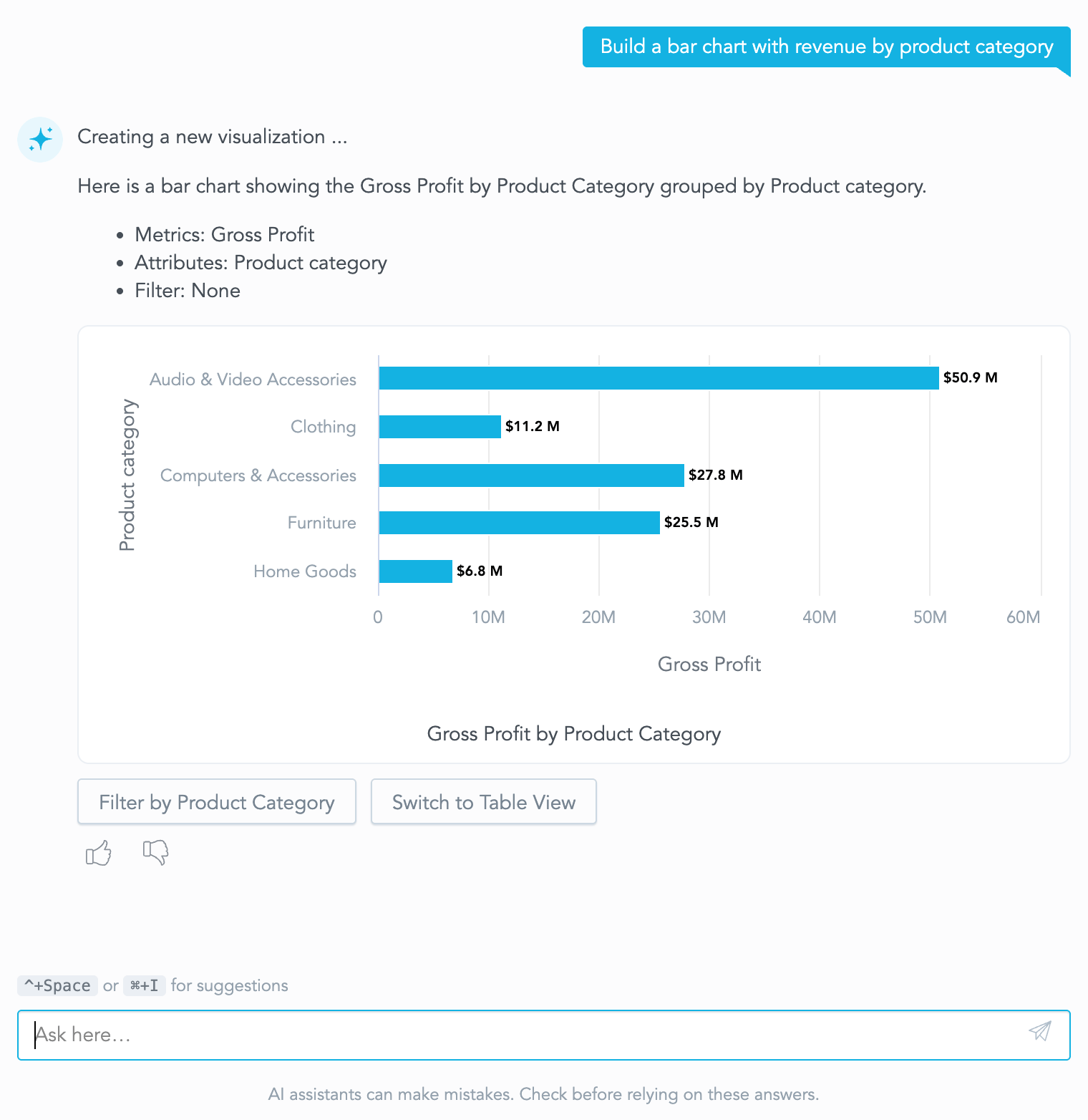
GenAIAssistant component renders chat history and an input field for sending user messages.
It does not include the logic for overlay management in case you want to render it in a floating window.
import {
    GenAIAssistant,
    ChatUserMessageEvent,
    isChatUserMessageEvent,
    LinkHandlerEvent,
} from "@gooddata/sdk-ui-gen-ai";

// Import required styles
import "@gooddata/sdk-ui-gen-ai/styles/css/main.css";

const App = () => {
    return (
        <div style={{ width: 500, height: 600, display: "flex" }}>
            {/* Wrap the chat UI in a container of desired size */}
            <GenAIAssistant
                // Optionally, add event listeners
                eventHandlers={[
                    {
                        eval: isChatUserMessageEvent,
                        handler: (event: ChatUserMessageEvent) => {
                            console.log(`User message: ${event.question}`);
                        },
                    },
                ]}
                // Optionally, provide links handler
                onLinkClick={(linkClickEvent: LinkHandlerEvent) => {
                    linkClickEvent.preventDefault();
                    console.log(`User click: ${linkClickEvent.itemUrl}`);
                    // E.g. when user asks the chatbot to find
                    // a specific dashboard and clicks on the result
                }}
                // Optionally, provide dispatcher for sending messages in the chat
                onDispatcher={(dispatch) => {
                    // Save dispatcher and use it to send messages
                }}
            />
        </div>
    );
};
Props
| Name | Type | Default | Description |
|---|---|---|---|
| locale | ILocale | “en-US” | Specifies the locale for internationalization |
| backend | IAnalyticalBackend | - | Backend instance. Falls back to BackendProvider context if not specified |
| workspace | string | - | Workspace ID. Falls back to WorkspaceProvider context if not specified |
| colorPalette | IColorPalette | - | Color palette used for rendering the visualizations. If not provided, the default color palette will be used |
| catalogItems | CatalogItem[] | - | Catalog items used for autocompletion. If not provided - will be lazy-loaded when needed |
| eventHandlers | ChatEventHandler[] | - | Event handlers for user interactions with the chat UI |
| onLinkClick | (LinkHandlerEvent) => void | - | Handle user clicks on the catalog items mentioned in chat. |
| allowNativeLinks | boolean | false | Whether to allow native links in chat messages. If false, onLinkClick handler will be fired when clicking on links |
| disableManage | boolean | false | This will disable manage permissions for the user even if the user has them defined. |
| disableAnalyze | boolean | false | This will disable analyze permissions for the user even if the user has them defined. |
| disableFullControl | boolean | false | This will disable full control permissions for the user even if the user has them defined. |
| onDispatcher | (dispatch: (action: unknown) => void) => void | - | Dispatcher for sending messages in the chat. |
| LandingScreenComponentProvider | () => ComponentType | - | Factory for providing a custom initial assistant experience component. When omitted, the default landing screen with quick questions is displayed. |
eventHandlers
Each event handler must comply with the following interface:
export interface ChatEventHandler<TEvent extends ChatEvent = any> {
    /**
     * A guard for a specific event type.
     */
    eval: (event: ChatEvent) => event is TEvent;
    /**
     * Event handler.
     */
    handler: (event: TEvent) => void;
}
@gooddata/sdk-ui-gen-ai provides a set of guards for all the events that can be emitted by the chat UI.
Here is a list of the relevant events:
| Event name | Guard name | Description |
|---|---|---|
ChatResetEvent | isChatResetEvent | Chat history was reset |
ChatUserMessageEvent | isChatUserMessageEvent | User sent a message |
ChatAssistantMessageEvent | isChatAssistantMessageEvent | Assistant responded with a message |
ChatFeedbackEvent | isChatFeedbackEvent | User gave a feedback |
ChatVisualizationErrorEvent | isChatVisualizationErrorEvent | Visualization failed to render |
ChatSaveVisualizationErrorEvent | isChatSaveVisualizationErrorEvent | Chat failed to save visualisation |
ChatSaveVisualizationSuccessEvent | isChatSaveVisualizationSuccessEvent | Chat successfully saved visualisation |
ChatCopyToClipboardEvent | isChatCopyToClipboardEvent | Chat copy to clipboard event |
onLinkClick
Handle user clicks on the catalog items mentioned in chat. If not provided, catalog items will be rendered as plain text. Each event contains the following properties:
| Property | Type | Description |
|---|---|---|
| type | string | Type of the metadata object the user clicked on. For example, “dashboard”, “metric” etc. |
| id | string | The ID of the metadata object |
| itemUrl | string | The URL of the metadata object, if opened in GoodData Web interface |
| newTab | boolean | Whether the link should be opened in a new tab |
| preventDefault | () => void | Prevent default behavior of the link click |
Note: If
allowNativeLinksis set tofalseor keep default, in must implementonLinkClickhandler to handle the links in chat messages. Otherwise, the links will not be clickable and do not have any effect.
Initial Assistant Experience
The initial assistant experience defines what users see before they send their first message to the AI Assistant. It is used to introduce the assistant, provide guidance, and offer suggested questions to help users get started. Once a user submits a question the assistant switches to the standard chat interface. By default, the AI Assistant displays a built-in initial experience with a title and quick questions, which you can fully replace or customize to match your application’s branding and guidance needs.
Customizing the initial assistant experience
To replace the default initial experience, provide the LandingScreenComponentProvider prop.
This prop accepts a factory function that returns a React component type, which is rendered as the initial assistant experience. The provider must return a component type, not JSX.
import { GenAIAssistant } from "@gooddata/sdk-ui-gen-ai";
import "@gooddata/sdk-ui-gen-ai/styles/css/main.css";

const CustomLandingScreen = () => (
    <div style={{ padding: 24 }}>
        <h3>Welcome to the embedded assistant</h3>
        <p>Describe what you are looking for and we will prepare the right insight.</p>
    </div>
);

export const App = () => <GenAIAssistant LandingScreenComponentProvider={() => CustomLandingScreen} />;
The package exports building blocks used by the default initial assistant experience. You can use these components to apply custom branding or modify content while preserving the built-in layout, accessibility, and automated question behavior.
Available components:
DefaultLandingScreenDefaultLandingTitleandDefaultLandingTitleAscentDefaultLandingQuestion
To extend the default experience (for example, to customize the suggested questions), wrap
DefaultLandingScreen in your own component and provide custom children:
import {
    DefaultLandingScreen,
    DefaultLandingQuestion,
    DefaultLandingTitle,
    DefaultLandingTitleAscent,
} from "@gooddata/sdk-ui-gen-ai";

const CustomDefaultLanding = () => (
    <DefaultLandingScreen>
        <DefaultLandingTitle>
            <DefaultLandingTitleAscent>Ask AI to explore your workspace</DefaultLandingTitleAscent>
            <br />
            Pick one of the suggestions below.
        </DefaultLandingTitle>
        <DefaultLandingQuestion
            question="Show revenue by product for 2024"
            answer="Here is the revenue by product for 2024"
        />
        <DefaultLandingQuestion question="What is our YoY trend?" answer="Here is the year-over-year trend" />
    </DefaultLandingScreen>
);

export const App = () => <GenAIAssistant LandingScreenComponentProvider={() => CustomDefaultLanding} />;
You can also reuse individual building blocks, such as DefaultLandingQuestion, inside a fully custom layout.
This allows you to create a personalized introduction while keeping the pre-wired assistant behavior for suggested questions.
Each DefaultLandingQuestion automatically dispatches a user message and triggers the assistant response,
using the same mechanism as the chat input.
const CustomLandingScreen = () => (
    <div className="my-company-landing">
        <h3>Welcome back!</h3>
        <p>Use the shortcuts to get started quickly.</p>
        <div className="my-company-landing__actions">
            <DefaultLandingQuestion
                question="List my top KPIs"
                answer="Here are your top KPIs"
                title="Top KPIs"
            />
            <DefaultLandingQuestion
                question="Create a new dashboard"
                answer="Here is a blank dashboard to start with"
                title="New dashboard"
            />
        </div>
    </div>
);
Use these building blocks to mix default styling and accessibility features with your own branding, while still benefiting from the automated assistant interactions.
Resetting the chat thread
To reset the chat thread, use the reset method on the ChatThread interface.
const chatThread = backend.workspace(workspaceId).genAI().getChatThread();

await chatThread.reset();
or dispatch clear thread action by using dispatcher
import { clearThreadAction } from "@gooddata/sdk-ui-gen-ai";

// Retrieve dispatcher from chat UI
dispatcher(clearThreadAction());
Actions that are now available
clearThreadAction- reset the chat threadnewMessageAction- add message to the stack and get response from the assistant
Example usage:
import {
    clearThreadAction,
    newMessageAction,
    makeUserMessage,
    makeTextContents,
} from "@gooddata/sdk-ui-gen-ai";

// Retreve dispatcher from chat UI
dispatcher(clearThreadAction());
dispatcher(newMessageAction(makeUserMessage([makeTextContents("Hello", [])])));