Customize Calendars
Custom calendar settings help ensure that time-based analysis in GoodData reflects how your organization operates. You can configure fiscal calendars to align reporting with your financial year, and define the first day of the week to ensure week-based analysis, filters, and aggregations follow regional or organizational standards.
Enable Fiscal Calendar
Fiscal calendars align time-based analysis with your organization’s financial year instead of the standard calendar year. They are useful for reporting on fiscal years, quarters, and months that do not start in January.
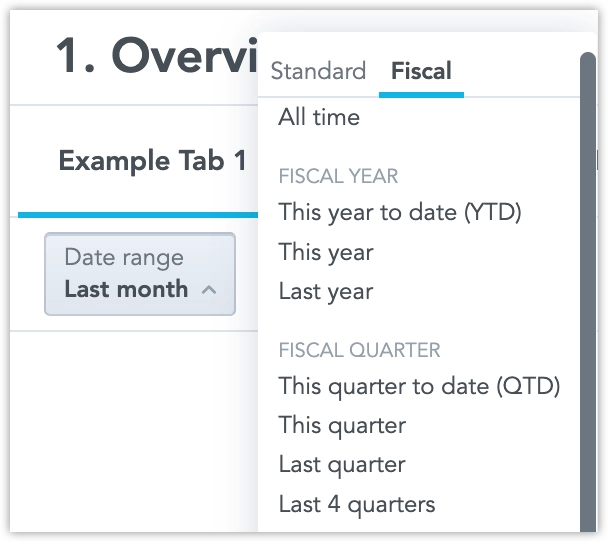
Fiscal calendars can be enabled either globally for the entire organization or individually for selected workspaces, depending on your needs.
Organization
When enabled at the organization level, fiscal calendars become available to all workspaces. Each workspace must still re-save its logical data model to apply the change.
Steps:
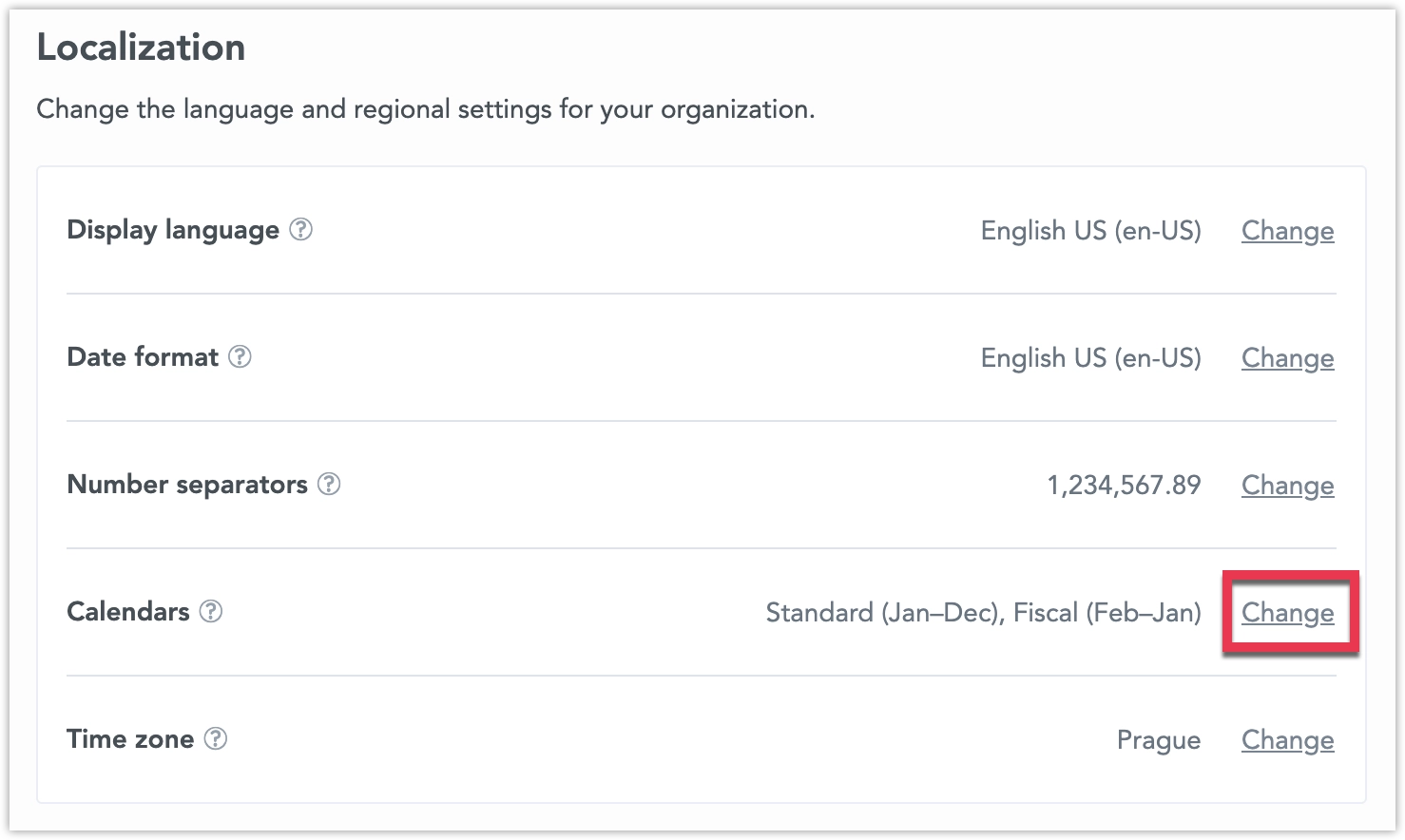
Go to Settings > Localization > Calendars and click Change.
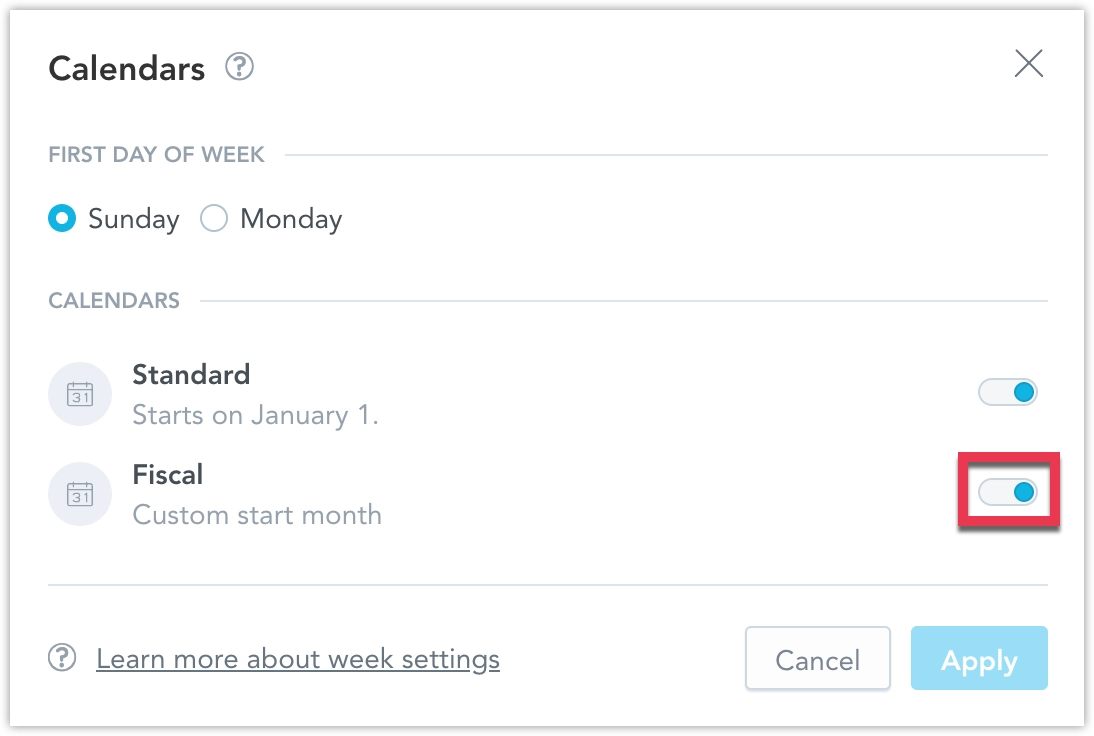
Toggle Fiscal calendars on and click Apply.
Resave Your Logical Data Model
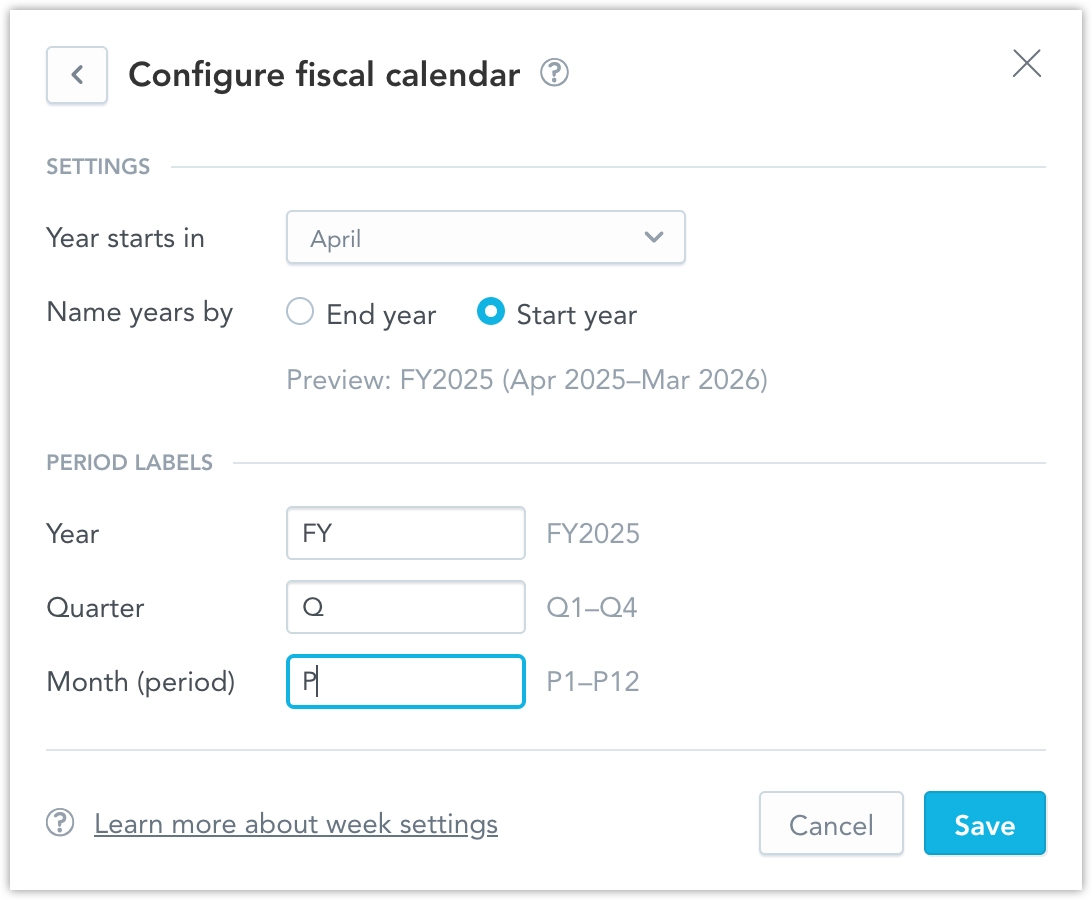
After enabling fiscal calendars, you must re-save the logical data model for each workspace where you want to use them. This step applies the calendar changes to that workspace.Optionally change what month your fiscal year starts in and customize how certain period labels are displayed in visualizations:
Workspace
If you do not want to enable fiscal calendars organization-wide, you can enable them for an individual workspace only. This is useful when different teams or regions require different calendar configurations.
Steps:
- Go to the target workspace and open Workspace Settings.
- Navigate to Localization > Calendars.
- Toggle Fiscal calendars on and click Apply.
- Re-save the logical data model for that workspace to apply the calendar changes.
Only the selected workspace is affected; other workspaces in the organization remain unchanged. Workspace-level settings fully override organization-level calendar configuration for that workspace.
What Changes
Enabling fiscal calendars changes how dates are grouped, filtered, compared, and presented across GoodData. Fiscal-specific date presets such as Fiscal Year to Date (FYTD), Fiscal Quarter to Date (FQTD), and Fiscal Period to Date (FPTD) become available in date filters. Relative comparisons (for example, Same period previous year) follow fiscal boundaries instead of standard calendar ones.
If both Standard and Fiscal calendars are enabled, users can switch between them using tabs in date filter dialogs.
The fiscal calendar context is applied consistently across the platform. Dashboards group and label data using fiscal periods, and all downstream outputs—including scheduled exports, alerts, and webhook notifications—respect the selected fiscal date ranges. Exported files and notification metadata include the correct fiscal period labels and ranges.
Change First Day of the Week
By default, GoodData assumes the week begins on Sunday. Consequently, all user interface date pickers are designed to display weeks from Sunday to Saturday, and any data analysis performed at the week level considers Sunday as the first day of the week. This can be changed in the settings so that the week starts on a Monday instead.
The setting can be changed for the entire organization, or for individual workspaces or users.
Mismatching Week Starts
When multiple users in the same workspace set different start of the week days, it can impact their calculations and filters for week, dayOfWeek, and weekOfYear. This happens because Sundays might fall into different weeks depending on the settings each user chooses. As a result, users with diverse week-start settings may see different results within the same workspace.
Organization
To change the first day of the week for the whole organization, use one of the following methods:
Steps:
Go to Settings.
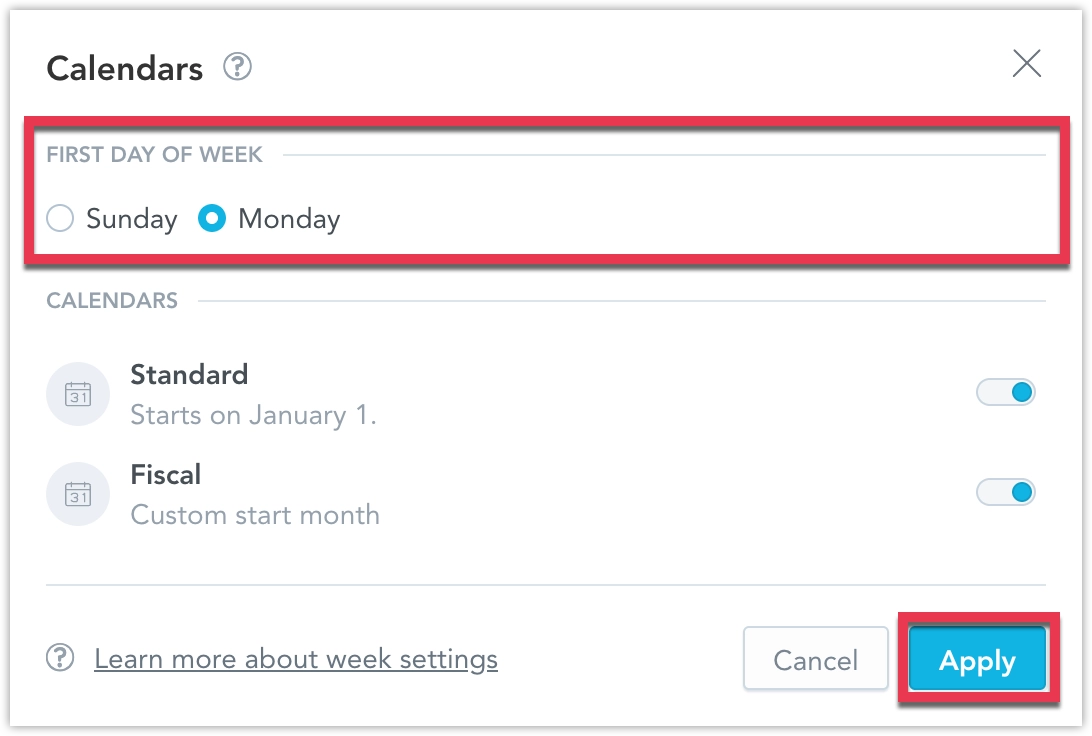
Under Localization > Calendars, click Change.
Select the day you want your weeks to start on and click Apply.
Make the following API call:
curl $HOST_URL/api/v1/entities/organizationSettings \
-H "Content-Type: application/vnd.gooddata.api+json" \
-H "Accept: application/vnd.gooddata.api+json" \
-H "Authorization: Bearer $API_TOKEN" \
-X POST \
-d '{
  "data": {
    "attributes": {
      "content": {
        "value": "Monday"
      },
      "type": "WEEK_START"
    },
    "id": "weekStart",
    "type": "organizationSetting"
  }
}'|jq .
The first day of the week should now be set to Monday for the entire organization.
To check what your current settings for the first day of the week is, you can make the following API call:
curl $HOST_URL/api/v1/entities/organizationSettings/weekStart \
-H "Accept: application/vnd.gooddata.api+json" \
-H "Authorization: Bearer $API_TOKEN" \
-X GET|jq .
To delete the setting, you can make the following API call:
curl $HOST_URL/api/v1/entities/organizationSettings/weekStart \
-H "Authorization: Bearer $API_TOKEN" \
-X DELETE
Make the following API call:
Invoke-RestMethod -Method Post -Uri "$HOST_URL/api/v1/entities/organizationSettings"`
-ContentType "application/vnd.gooddata.api+json" `
-H @{
    'Accept' = "application/vnd.gooddata.api+json"
    'Authorization' = "Bearer $API_TOKEN"
} `
-Body '{
    "data": {
      "attributes": {
        "content": {
          "value": "Monday"
        },
        "type": "WEEK_START"
      },
      "id": "weekStart",
      "type": "organizationSetting"
    }
}' | ConvertTo-Json
The first day of the week should now be set to Monday for the entire organization.
To check what your current settings for the first day of the week is, you can make the following API call:
Invoke-RestMethod -Method Get -Uri "$HOST_URL/api/v1/entities/organizationSettings/weekStart"`
-H @{
    'Accept' = "application/vnd.gooddata.api+json"
    'Authorization' = "Bearer $API_TOKEN"
} | ConvertTo-Json
To delete the setting, you can make the following API call:
Invoke-RestMethod -Method Delete -Uri "$HOST_URL/api/v1/entities/organizationSettings/weekStart"`
-H @{
    'Authorization' = "Bearer $API_TOKEN"
}
Workspace
To change the first day of the week for individual workspaces, you need to use the API:
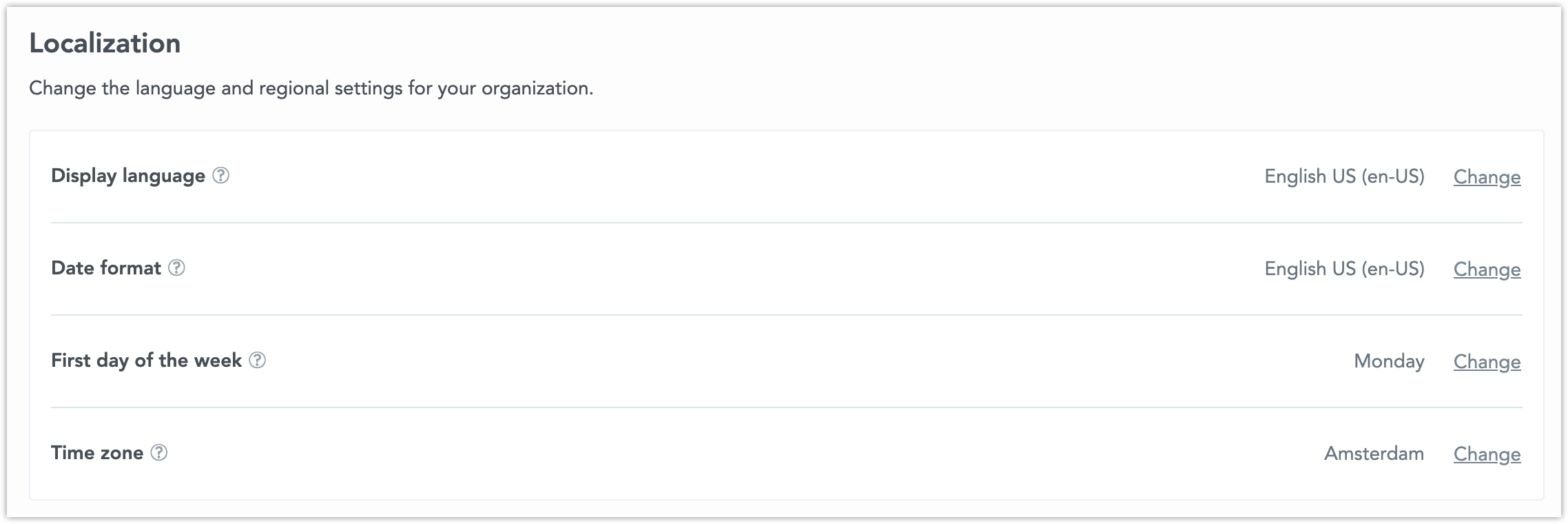
Go to the Workspaces tab and open the workspace you want to edit. Open the Settings tab and click Change in the First day of the week section.
Subtitute your <workspace_id> and make the following API call:
curl $HOST_URL/api/v1/entities/workspaces/<workspace_id>/workspaceSettings \
-H "Content-Type: application/vnd.gooddata.api+json" \
-H "Accept: application/vnd.gooddata.api+json" \
-H "Authorization: Bearer $API_TOKEN" \
-X POST \
-d '{
  "data": {
    "attributes": {
      "content": {
        "value": "Monday"
      },
      "type": "WEEK_START"
    },
    "id": "weekStart",
    "type": "workspaceSetting"
  }
}'| jq .
The first day of the week should now be set to Monday.
To check what your current settings for the first day of the week is, you can make the following API call:
curl $HOST_URL/api/v1/entities/workspaces/<workspace_id>/workspaceSettings/weekStart \
-H "Accept: application/vnd.gooddata.api+json" \
-H "Authorization: Bearer $API_TOKEN" \
-X GET \
|jq .
To delete the setting, you can make the following API call:
curl $HOST_URL/api/v1/entities/workspaces/<workspace_id>/workspaceSettings/weekStart \
-H "Authorization: Bearer $API_TOKEN" \
-X DELETE
Subtitute your <workspace_id> and make the following API call:
Invoke-RestMethod -Method Post -Uri "$HOST_URL/api/v1/entities/workspaces/<workspace_id>/workspaceSettings"`
-ContentType "application/vnd.gooddata.api+json" `
-H @{
    'Accept' = "application/vnd.gooddata.api+json"
    'Authorization' = "Bearer $API_TOKEN"
} `
-Body '{
    "data": {
      "attributes": {
        "content": {
          "value": "Monday"
        },
        "type": "WEEK_START"
      },
      "id": "weekStart",
      "type": "workspaceSetting"
    }
}' | ConvertTo-Json
The first day of the week should now be set to Monday.
To check what your current settings for the first day of the week is, you can make the following API call:
Invoke-RestMethod -Method Get -Uri "$HOST_URL/api/v1/entities/workspaces/<workspace_id>/workspaceSettings/weekStart"`
-H @{
    'Accept' = "application/vnd.gooddata.api+json"
    'Authorization' = "Bearer $API_TOKEN"
} | ConvertTo-Json
To delete the setting, you can make the following API call:
Invoke-RestMethod -Method Delete -Uri "$HOST_URL/api/v1/entities/workspaces/<workspace_id>/workspaceSettings/weekStart"`
-H @{
    'Authorization' = "Bearer $API_TOKEN"
}
User
To change the first day of the week for individual users, you need to use the API:
Subtitute your <user_id> and make the following API call:
curl $HOST_URL/api/v1/entities/users/<user_id>/userSettings \
-H "Content-Type: application/vnd.gooddata.api+json" \
-H "Accept: application/vnd.gooddata.api+json" \
-H "Authorization: Bearer $API_TOKEN" \
-X POST \
-d '{
  "data": {
    "attributes": {
      "content": {
        "value": "Monday"
      },
      "type": "WEEK_START"
    },
    "id": "weekStart",
    "type": "userSetting"
  }
}'|jq .
The first day of the week should now be set to Monday.
To check what your current settings for the first day of the week is, you can make the following API call:
curl $HOST_URL/api/v1/entities/users/<user_id>/userSettings/weekStart \
-H "Accept: application/vnd.gooddata.api+json" \
-H "Authorization: Bearer $API_TOKEN" \
-X GET \
|jq .
To delete the setting, you can make the following API call:
curl $HOST_URL/api/v1/entities/users/<user_id>/userSettings/weekStart \
-H "Authorization: Bearer $API_TOKEN" \
-X DELETE
Subtitute your <user_id> and make the following API call:
Invoke-RestMethod -Method Post -Uri "$HOST_URL/api/v1/entities/users/<user_id>/userSettings"`
-ContentType "application/vnd.gooddata.api+json" `
-H @{
    'Accept' = "application/vnd.gooddata.api+json"
    'Authorization' = "Bearer $API_TOKEN"
} `
-Body '{
    "data": {
      "attributes": {
        "content": {
          "value": "Monday"
        },
        "type": "WEEK_START"
      },
      "id": "weekStart",
      "type": "userSetting"
    }
The first day of the week should now be set to Monday.
To check what your current settings for the first day of the week is, you can make the following API call:
Invoke-RestMethod -Method Get -Uri "$HOST_URL/api/v1/entities/users/<user_id>/userSettings/weekStart"`
-H @{
    'Accept' = "application/vnd.gooddata.api+json"
    'Authorization' = "Bearer $API_TOKEN"
} | ConvertTo-Json
To delete the setting, you can make the following API call:
Invoke-RestMethod -Method Delete -Uri "$HOST_URL/api/v1/entities/users/<user_id>/userSettings/weekStart"`
-H @{
    'Accept' = "application/vnd.gooddata.api+json"
    'Authorization' = "Bearer $API_TOKEN"
}