Use Custom Icons in Geo Charts
You can use custom icons in geo chart pushpin layers to make locations easier to distinguish. Custom icons can be applied in two ways: as one icon for all points in a layer, or dynamically from a data column.
Follow these steps:
Prepare Sprites
Custom icons are provided through a MapLibre sprite set hosted by your organization. The sprite set is defined by a base URL and must include these files:
{base_url}.json– sprite index{base_url}.png– sprite atlas
Optional high-resolution variants are also supported:
{base_url}@2x.json{base_url}@2x.png
For example, if your base URL is https://cdn.example.com/sprites/poi, GoodData uses https://cdn.example.com/sprites/poi.json and https://cdn.example.com/sprites/poi.png.
Register Sprite Set
An administrator must register the sprite base URL in Settings > Appearance & Behaviour > Geospatial Icons.
GoodData validates that:
- the
.jsonfile is reachable and contains a valid sprite index - the
.pngfile is reachable
After validation succeeds, the sprite set becomes available for geo charts in the organization. If validation fails, the previous configuration is kept.
Add Icon Labels
To use data-driven icons, add a secondary label with value type GEO_ICON to a location attribute that already contains GEO_LATITUDE and GEO_LONGITUDE labels.
The GEO_ICON label should contain icon names that match keys in the sprite index, for example hospital, school, or restaurant.
Each attribute can have only one GEO_ICON label. If a value is empty or does not match any icon in the active sprite catalog, the point is shown with the default pushpin.
Configure Pushpins
In Analytical Designer, open the pushpin layer and choose one of these shape types:
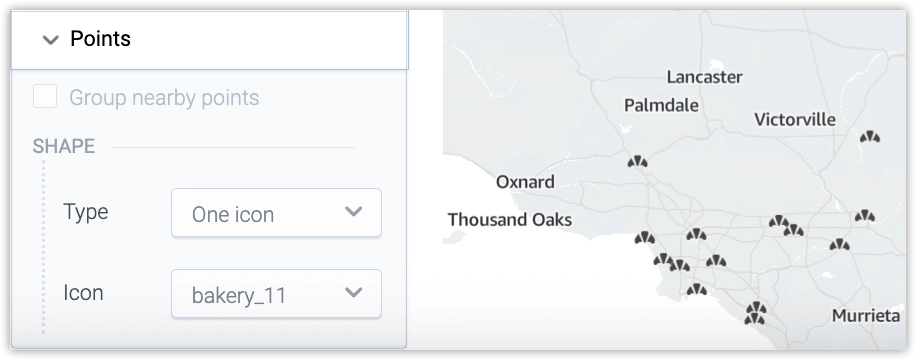
- One icon: Select one icon to use for all points in the layer.
- Icon by value: Use icon names from the
GEO_ICONlabel to render icons per point.
The Icon by value option is available only when the selected location attribute includes a GEO_ICON label.
Limitations
When a custom pushpin icon is enabled, these options are not available for the layer:
- metric by color bucket
- metric by size bucket
- segment by bucket
- clustering
- color configuration
A metric can still be used in tooltips, but it does not control icon color or size.