Semantic Quality Agent
The Semantic Quality Agent automatically detects issues in a workspace’s logical data model and metrics that can reduce the performance of AI tools such as AI Assistant and Smart Search. It helps you improve the clarity and uniqueness of object titles and descriptions, which can improve the quality of AI results.
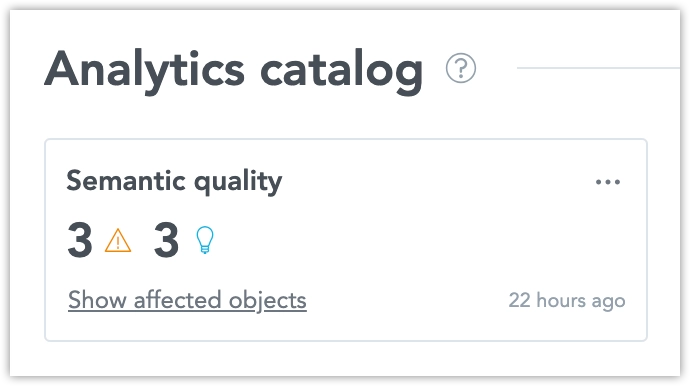
The Semantic Quality Agent does not change any metadata automatically. You remain in full control of what gets updated.
Key Capabilities
Mark Objects with Issues
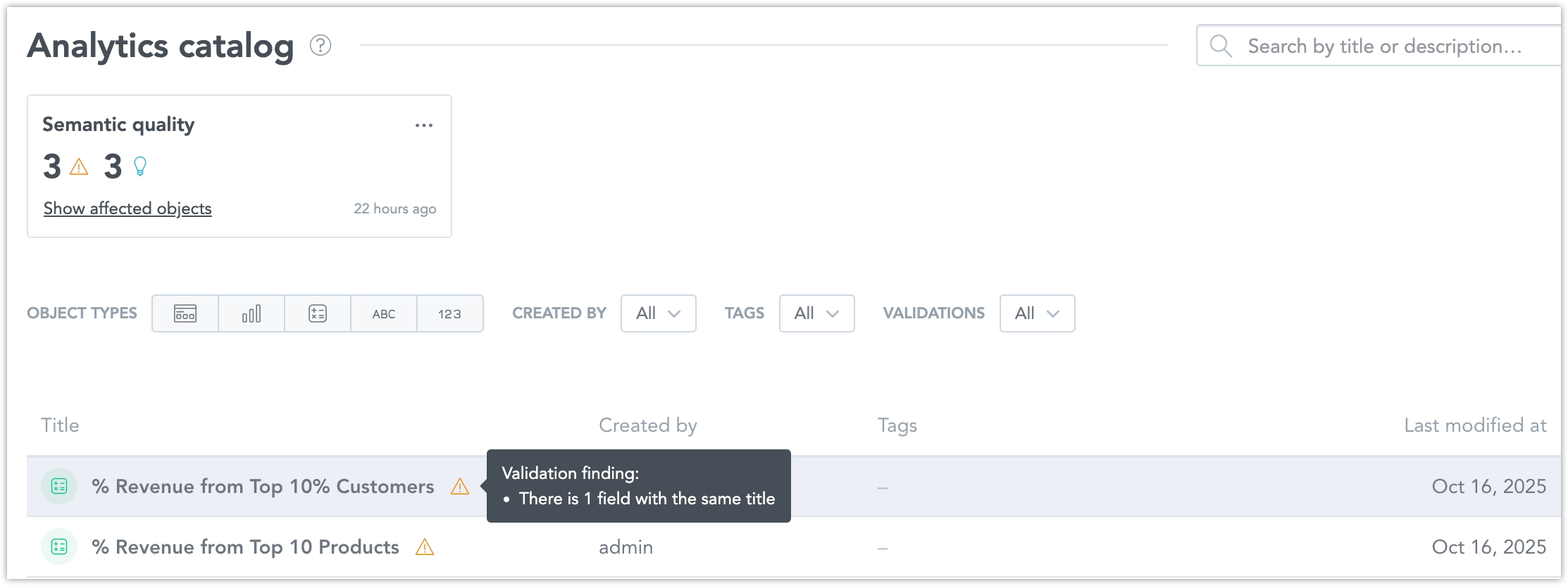
The Analytics Catalog highlights objects with problems in their descriptive properties. When you click an object, you can see detailed information with marked fields and explanations.
Filter by Issue Type
You can filter the Analytics Catalog to show only objects with descriptive property issues. This helps you quickly find and fix the problems.
Review Issue Details
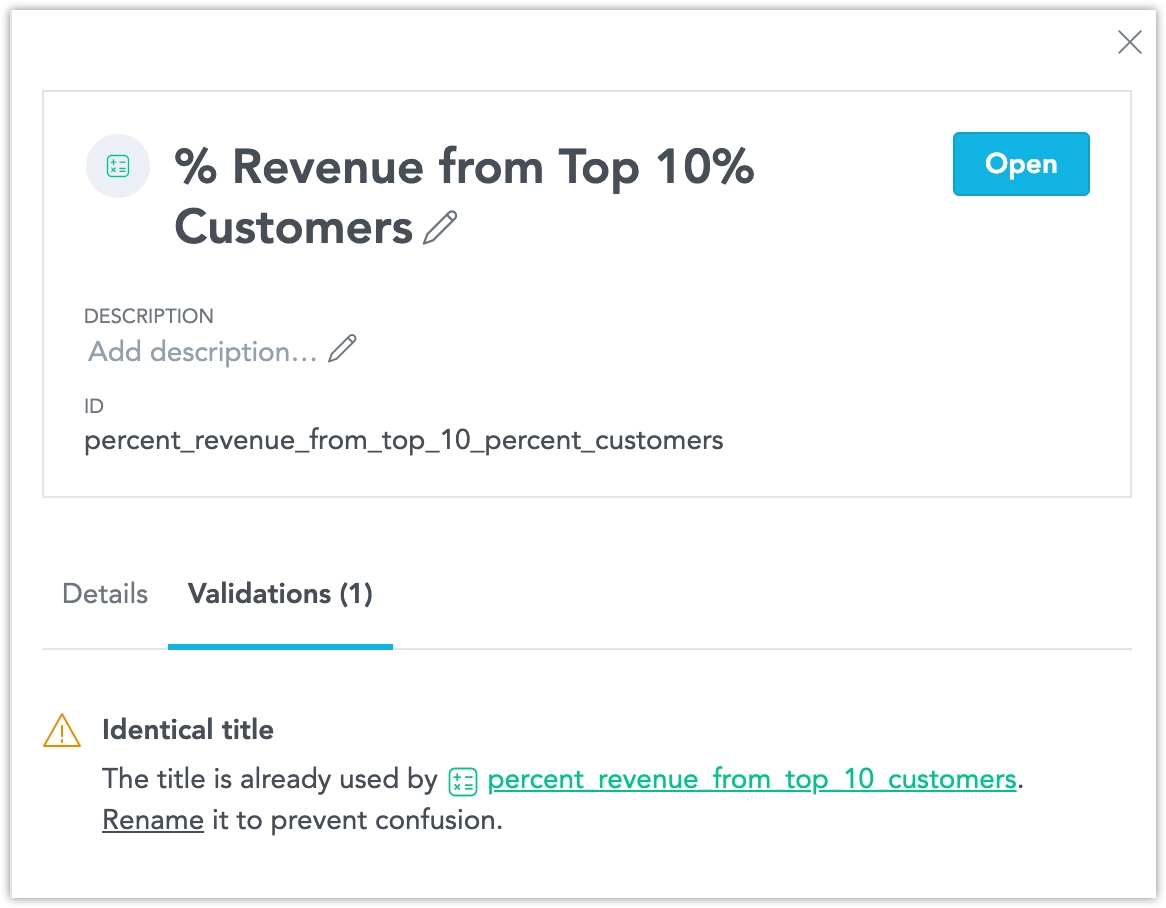
Clicking an object opens its detail view, where you can see a list of issues and guidance on what to fix.
Types of Checks
What Is Checked
The check focuses on metadata that affects how AI finds and understands objects. It currently validates descriptive properties for metrics, attributes, facts, and date datasets.
Dashboards and visualizations are not included in this validation.
Run the Check
You must start the semantic quality check manually each time. This includes the first validation and re-checking after you fix issues.
To perform a validation:
- Open the Analytics Catalog.
- Run the Semantic Quality Check manually.
- Review and fix any issues found.
- Run the check again to confirm the fixes.
When you run a check, the catalog shows the status (for example, in progress or finished) and the time of the last run.
The Semantic Quality Agent looks for the following types of issues:
- Identical title
- Identical description
- Semantically similar title
- Semantically similar description
- Unknown abbreviation
Objects with the isHidden property set to true are not validated. Other objects are not checked against hidden ones.
Filter and Status
You can filter the Analytics Catalog to focus on the objects you need to fix:
- show all objects
- show only objects with findings
- show only objects without findings
- show objects with a specific finding type (for example, duplicate titles)
This helps you review and fix issues in batches.
View Issue Details
Clicking an object opens its detail view. A new section lists all detected issues, with explanations shown when you hover over each mark.
Validation Detail
This section lists all validation messages that appear in the panel, including their names, descriptions, and actions.
| Name | Description | Action |
|---|---|---|
| Title already used | Another item has the same title. Rename it to keep titles unique. | Edit title |
| Duplicate description | This description matches another one. Update it to make each one clear and distinct. | Edit description |
| Title too similar | The title closely resembles another. Review it to confirm they refer to different items. | Edit title |
| Description too similar | The description is semantically close to another. Adjust to clarify the difference. | Edit description |
| Unrecognized abbreviations | Contains abbreviations not found in known naming patterns. Replace or define them for clarity. | Abbr in title → Edit title Abbr in description → Edit description Both → Edit title |
How Validation Appears
In the Analytics Catalog, validation results appear in a dedicated panel:
- Heading in the validation panel: Displays the issue name (for example, Title already used).
- Additional text (expanded view): Shows the issue description and a short explanation.
- Validation CTA (Call to Action): Suggests an action such as Edit title or Edit description.