Object Lineage
Object Lineage in the Analytics Catalog shows how analytical objects connect to and depend on one another. It enables safe change management by displaying upstream dependencies (how an object is built) and downstream dependencies (where an object is used). Solution architects can estimate the impact before modifying or deleting objects, identify orphaned objects, and trace how objects are constructed. Lineage transforms the catalog from a simple list into a governance layer. Lineage applies to metrics, visualizations, dashboards, attributes, and facts.
Terminology
- Upstream: The source or origin of an object (what it depends on). For example, if a visualization uses a metric, the metric is upstream from the visualization.
- Downstream: Where the object is used (what depends on it). For example, if a metric is used in a dashboard, the dashboard is downstream from the metric.
View Lineage for an Object
- Open the Analytics Catalog and browse objects such as metrics, visualizations, dashboards, attributes, and facts.
- Select an object to access its object detail page.
- Click the Lineage tab.
- View lineage information:
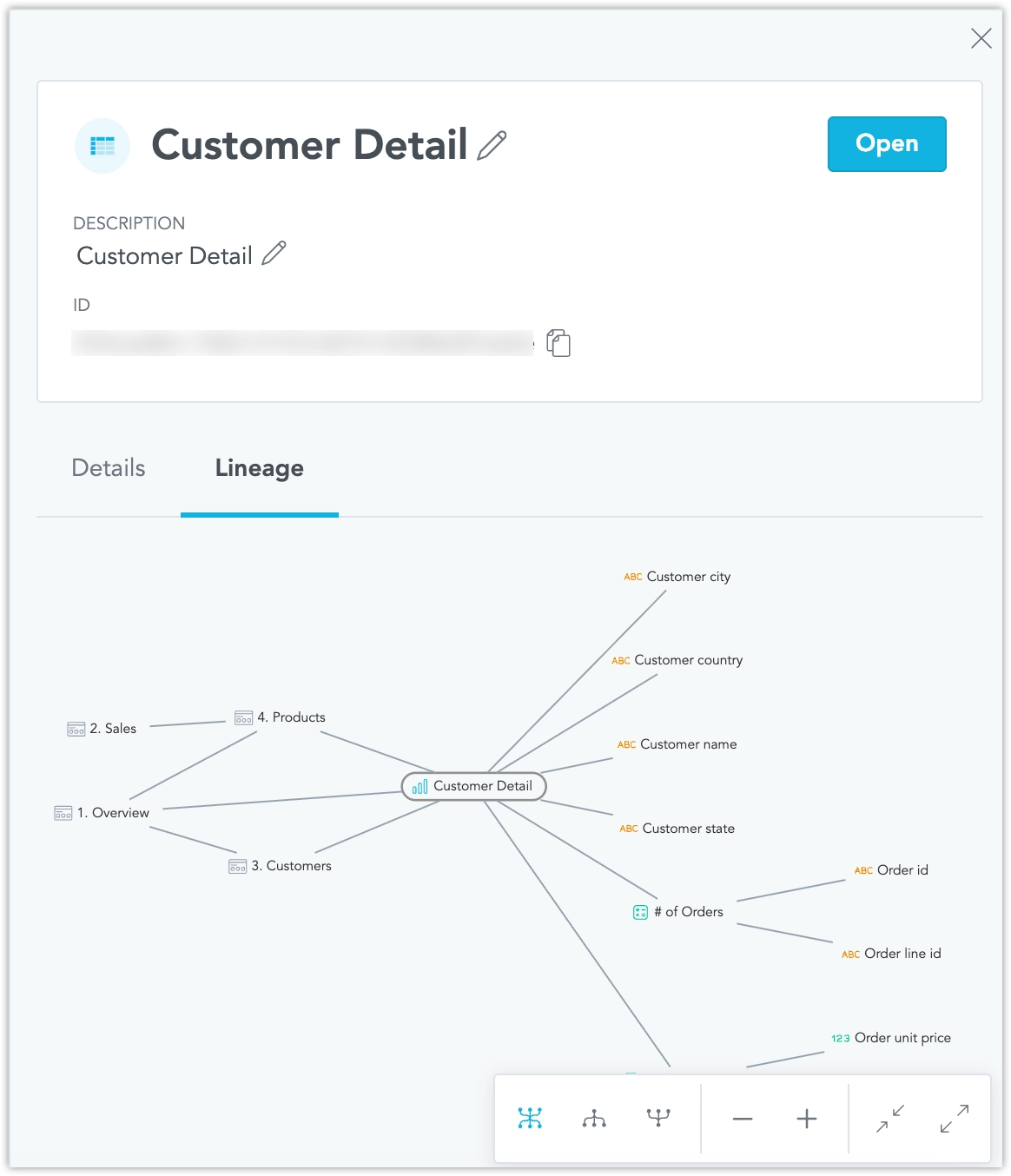
- Upstream (Built from): Shows objects that this object depends on, like metrics, facts, or attributes.
- Downstream (Used in): Displays objects that use this object, such as dashboards, visualizations, or metrics.
- Optionally, navigate to a dependent object by clicking it within the lineage view.
- Optionally, expand dependency levels to explore deeper relationships.
Estimate Impact Before Changing
- Open an object detail in the Analytics Catalog.
- Click the Lineage tab.
- Review the Downstream (Used in) section to see which objects depend on this object.
- Evaluate the impact:
- If the object has no dependents, it is safe to delete.
- If the object has multiple dependents, review each one before proceeding.
- Optionally, navigate to dependent objects to better understand their usage.
- Make a well-informed decision about whether to proceed with changes or deletion.
Understand How an Object Is Built
- Open an object detail in the Analytics Catalog.
- Click the Lineage tab.
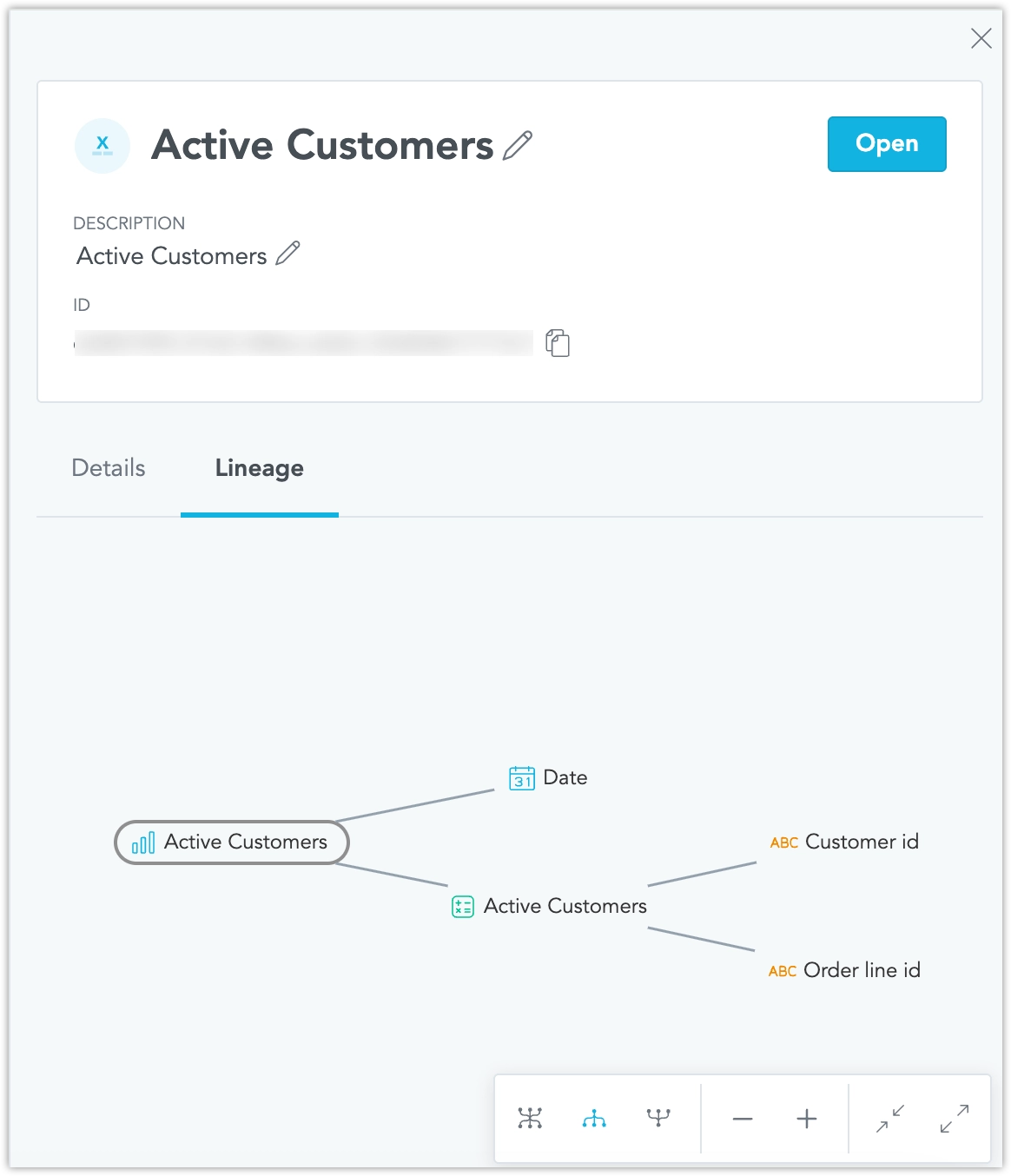
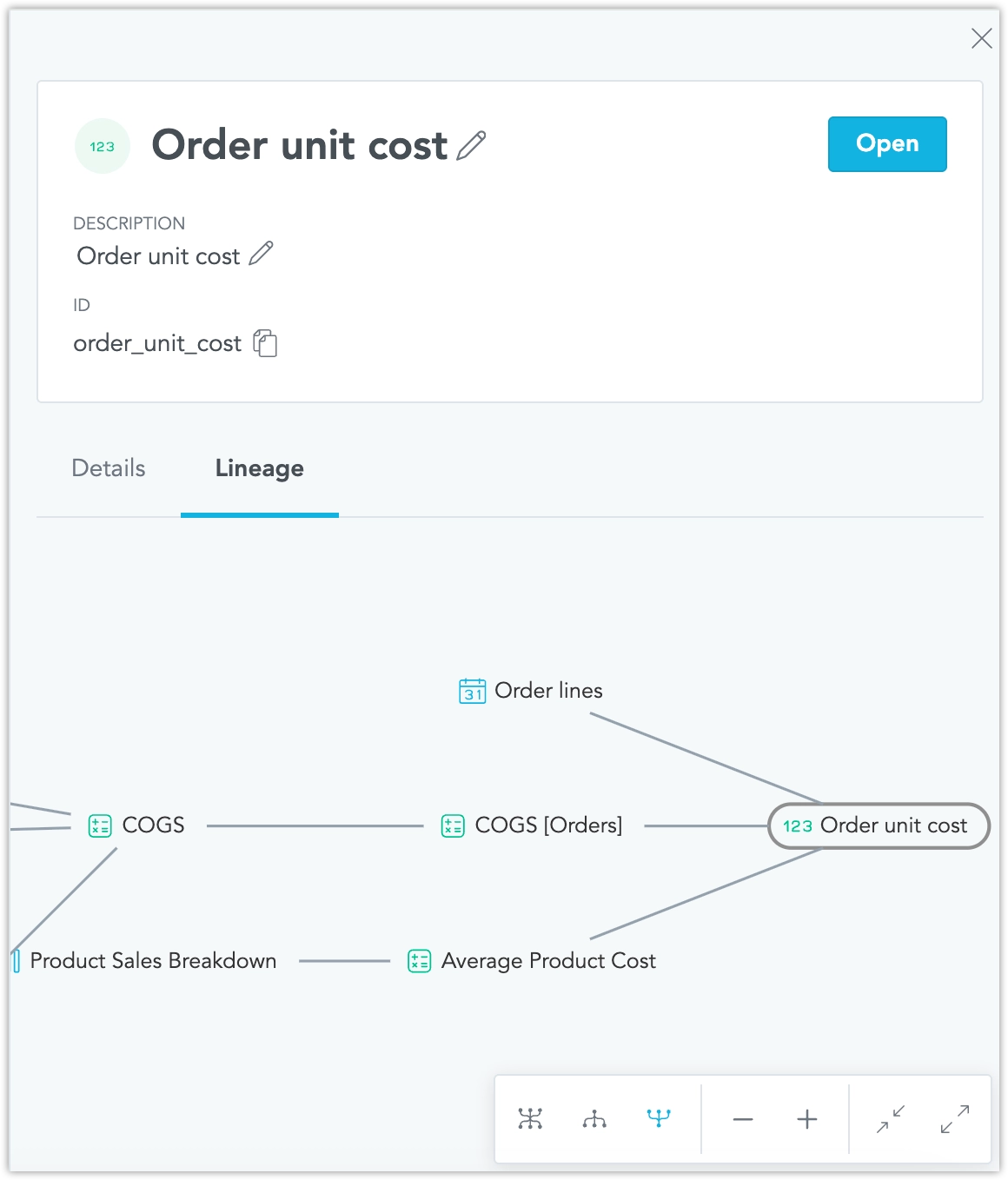
- View the Upstream (Built from) section to see which objects this object uses.
- Follow the dependency chain:
- For visualizations: check which metrics they use
- For metrics: check which facts and attributes they use
- For dashboards: see which visualizations they contain
- Optionally, expand dependency levels to trace down to facts and attributes.
- Use this information to understand data structure and object relationships.
This is an experimental feature that is still under active development. Its behavior may change in future releases.