Analytics Catalog
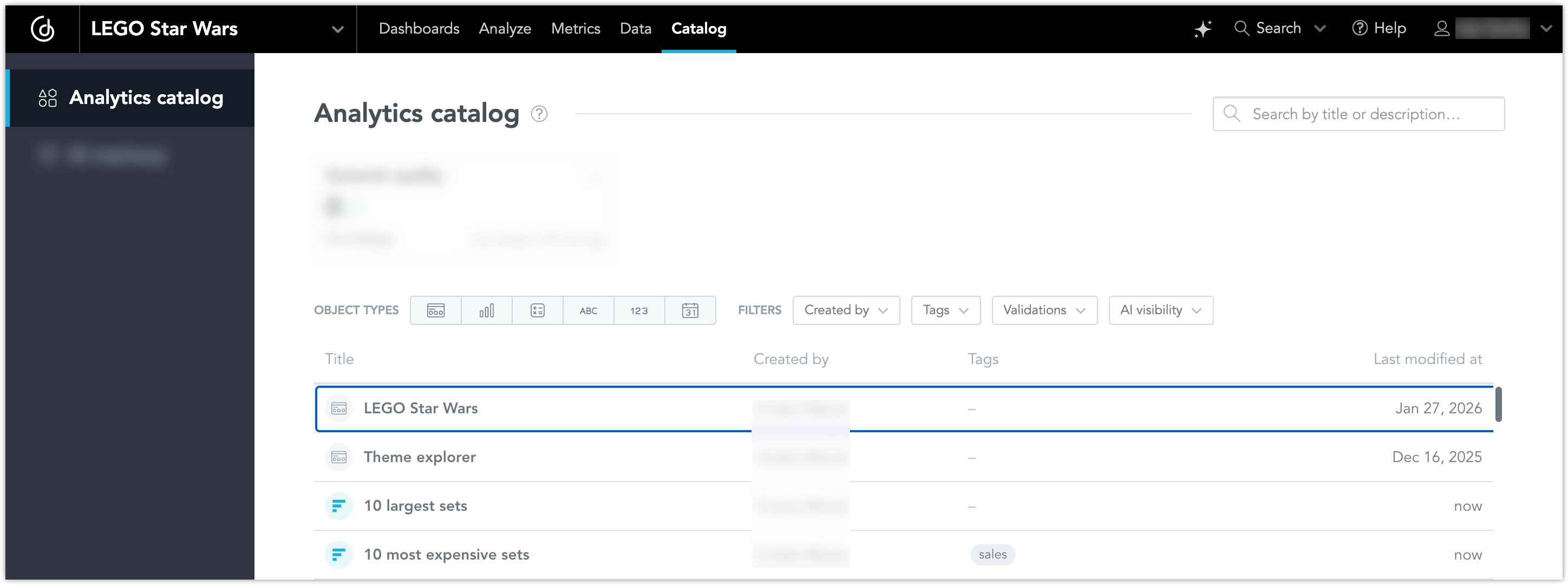
The Analytics Catalog provides a single place to browse and manage the semantic objects in a workspace, such as dashboards, visualizations, metrics, attributes, facts, and date datasets. It helps workspace managers to keep analytics assets organized and easier to understand as the workspace grows. The Analytics Catalog enables direct editing of object properties, shows how objects connect through lineage, and provides a link to a specific application where you can do more complex updates.
You can open the Analytics Catalog from the Home page. It is available to users with the following permissions: Organization.MANAGE, Workspace.MANAGE, and Workspace.ANALYZE. Permissions also control which objects you can edit in the catalog.
Key Capabilities
Search and Filter
Use the search field to find objects by title and description. You can further refine results with filters, for example:
- object type
- creator
- tags
- relationships (parent and child)
You can apply multiple filters at the same time. Filters are combined using logical AND, allowing you to refine results with precision. The catalog uses lazy loading, so more results load as you scroll.
Object Details
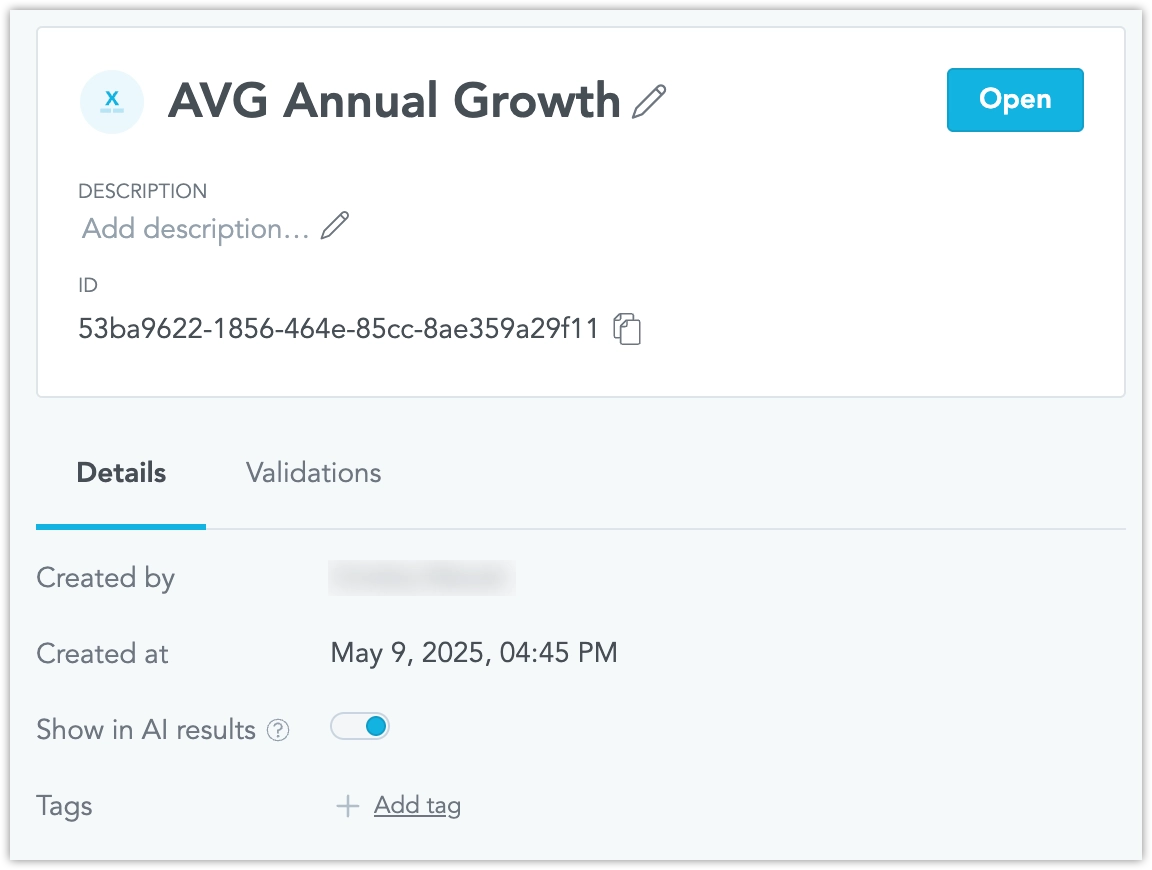
Select an object to open its detailed metadata view. The details view includes:
- name and description
- object type and ID
- tags
- created by and created date
- last modified by and last modified date
- dataset information for attributes and facts
In the details view, you can edit some information or open the object in the relevant editor, provided you have sufficient permissions in the workspace. Changes are saved immediately.
You can also copy the URL of the details view and share it with a colleague for review.
Note
If an object is inherited from a parent workspace, it is read-only in the child workspace. The catalog shows a lock indicator so you know the object cannot be edited in the current workspace.
Tags
Tags help group and filter objects in large workspaces. For example, you can tag a metric with products so it appears grouped in the Analytical Designer.
- Tags are shown in the Tags column.
- You can filter the catalog by using the filter and selecting tags as filter values, or alternatively, click a tag value directly in the table.
Object Lineage
Object Lineage is an experimental feature that is still under active development. Its behavior may change in future releases.
Object Lineage shows how analytical objects connect and depend on each other. It enables safe change management by displaying upstream dependencies (how an object is built) and downstream dependencies (where an object is used).
- View dependencies: Open an object detail and click the Lineage tab to see which objects this object uses (upstream) and which objects use this object (downstream).
- Estimate impact: Before modifying or deleting an object, review downstream dependencies to see what will be affected.
- Identify orphaned objects: Filter the catalog to show only objects not used by any other object, then clean up unused assets.
- Trace object construction: Navigate upstream dependencies to understand how objects are built from facts, attributes, and metrics.
Lineage visibility follows existing workspace permissions. You can only see lineage for objects you have permission to view.
For detailed information about lineage, including API endpoints and SDK usage, see Object Lineage.
Trending and Recommended Objects
The Analytics Catalog can highlight objects to help users discover useful dashboards, visualizations, and metrics without browsing the full list.
Trending objects show what is currently popular in the workspace. Trending is based on how often objects are mentioned in AI Assistant questions and in semantic search queries.
Recommended objects help users find content relevant to their role or team. Recommendations are based on tags that match user group names. For example, if you tag an object with Sales, users in the Sales user group can filter the catalog by that tag to see Sales-recommended objects.
How to Use Trending and Recommended Sections
- Open the Analytics Catalog.
- Review the Trending and Recommended sections.
- Click an object to open its details or use it.
- Optional: Filter the catalog by recommendation tags to show only objects recommended for a specific group.
Tagging Objects for Recommendations
To make an object recommended for a group, add a tag that matches the user group name. For example, tag an object with Sales to recommend it to users in the Sales group, or Finance to recommend it to users in the Finance group.
Trending and Recommended Objects is an experimental feature that is still under active development. Its behavior may change in future releases.
Hide Objects from AI Results
The Analytics Catalog can show and edit whether an object is hidden from AI. Hidden objects remain available in the catalog, but they are not used or suggested by AI features.

In the catalog list, hidden objects are marked with an icon. You can use filters to show:
- all objects
- only objects hidden from AI
- only objects visible to AI
Embeddability
The Analytics Catalog can be embedded into custom applications using the GoodData.UI SDK. This allows you to integrate catalog browsing and object management directly into your own user interfaces while keeping the same behavior and permissions as in the GoodData UI.
The SDK provides ready-to-use React components for browsing catalog items and displaying object details. For more information about the SDK, see the GoodData.UI documentation.
AnalyticsCatalog Component
The AnalyticsCatalog component renders a full interactive catalog view. It lists dashboards, visualizations, metrics, attributes, and facts, and includes built-in search, filtering, and object detail access.
The component uses the backend and workspace from context, or you can pass them directly as props.
Example:
import { AnalyticsCatalog } from "@gooddata/sdk-ui-catalog";
import { BackendProvider, WorkspaceProvider } from "@gooddata/sdk-ui";

// Import styles once in your application
import "@gooddata/sdk-ui-catalog/styles/css/main.css";

export function App() {
    return (
        <BackendProvider backend={backend}>
            <WorkspaceProvider workspace="workspace_id">
                <AnalyticsCatalog />
            </WorkspaceProvider>
        </BackendProvider>
    );
}
You can also provide the backend and workspace explicitly:
<AnalyticsCatalog backend={backend} workspace="workspace_id" />AnalyticsCatalogDetailContent Component
If you want to embed only the object detail view into your own layout, you can use the AnalyticsCatalogDetailContent component. This is useful when you want full control over layout and navigation, but still reuse the catalog detail UI.
Example:
import { AnalyticsCatalogDetailContent } from "@gooddata/sdk-ui-catalog";
import "@gooddata/sdk-ui-catalog/styles/css/detail.css";

export function App() {
    return (
        <AnalyticsCatalogDetailContent
            objectId="object_id"
            objectType="insight"
        />
    );
}
AnalyticsCatalogDetail Component
The AnalyticsCatalogDetail component provides a ready-to-use overlay with object details and actions. It is suitable when you want a modal-style experience similar to the native Analytics Catalog.
Example:
import { useState } from "react";
import { AnalyticsCatalogDetail } from "@gooddata/sdk-ui-catalog";
import "@gooddata/sdk-ui-catalog/styles/css/detail.css";

export function App() {
    const [open, setOpen] = useState(true);

    return (
        <AnalyticsCatalogDetail
            open={open}
            onClose={() => setOpen(false)}
            objectId="object_id"
            objectType="insight"
        />
    );
}
Permissions and Behavior
Embedded catalog components respect the same permissions as the Analytics Catalog in the GoodData UI. Users only see and can edit objects they have access to in the workspace.
Search, filtering, object visibility, and AI-related settings behave consistently across embedded and native experiences.