Configure LLM Providers and Models for AI Assistant
To use the AI Assistant, you must configure at least one large language model (LLM) provider and make at least one LLM available to GoodData.
This article explains which providers GoodData supports, how provider setup works, which models are officially supported, which provider-specific settings you may need, and how default provider and model settings affect workspace behavior.
Supported Providers
GoodData currently supports the following providers:
- OpenAI
- Azure Foundry
- Amazon Bedrock
A model can be available through more than one provider. For example, a GPT model may be available directly through OpenAI or through Azure Foundry.
Some organizations may also have access to a GoodData default provider. If this provider is available in your organization, administrators can use it like any other provider when choosing defaults for workspaces. However, its connection settings are managed by GoodData and cannot be edited in the UI.
Supported and Recommended Models
GoodData automatically discovers models available from the connected provider. In the model selection dialog, GoodData first shows the models that are officially supported.
Other discovered models may also be available, but they are shown only after you expand the full model list. These models are marked with a warning because they have limited support.
The currently supported models are:
- OpenAI:
gpt-5.2 - Azure Foundry:
gpt-5.2 - Amazon Bedrock:
Claude Sonnet 4.5
Add an LLM Provider
When you create a provider, GoodData validates the entered values as part of the setup flow. Required fields cannot be empty, and some fields have maximum length limits.
Connection validation also happens automatically when you connect the provider.
Steps:
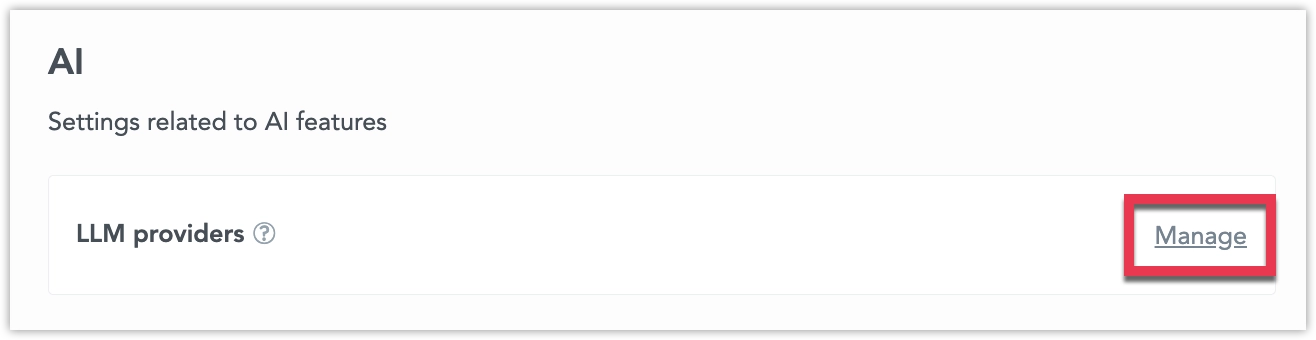
In Settings, go to AI > LLM providers and click Manage:
Click Add.
Select the provider type.
Enter a provider name and the required connection details.
Click Connect.
Select the models that should be available in GoodData, set the default model, and save the provider.
The first provider you add becomes the default provider for the organization. You can change the default later if you add another provider.
Provider-Specific Settings
Different providers can require different endpoint URLs, credentials, or regional settings.
OpenAI
For OpenAI, enter these values:
- Base URL
- API key
- Organization – Use the organization ID, not the organization name.
The default Base URL is: https://api.openai.com/v1
Example values:
- Base URL:
https://api.openai.com/v1 - API key:
sk-proj-*** - Organization:
org-***
Recommended model:
gpt-5.2
Azure Foundry
For Azure Foundry, enter these values:
- Endpoint – Use the Azure Foundry resource endpoint, not the endpoint of a specific deployed model.
- API key
Example value:
- Endpoint:
https://<resource>.openai.azure.com/
Recommended model:
gpt-5.2
Amazon Bedrock
For Amazon Bedrock, enter these values:
- Region code – Enter the AWS region code, not a region name such as
US East. There is no default region code. - Access key
- Secret key
Example values:
- Region code:
us-east-1 - Access key:
AKIA***
Recommended model:
Claude Sonnet 4.5
Select Models and Set Defaults
After you connect a provider, select which models should be available in GoodData. Each provider can have up to 20 selected models. By default, no model is selected when you first connect a provider.
Steps:
Open the provider you want to configure.
In Available models, select one or more models.
Choose the default model for that provider.
Save the provider.
When you select the first model, GoodData automatically sets it as the default model. You can change the default model later.
If you want to use a discovered model that is not in the supported list, expand the full list of models. Unsupported models are marked with a warning icon.
If the current default model is removed from the selected list, the Default model field is cleared. You must choose a new default model before you can save the provider.
If a previously selected model is no longer available from the provider, GoodData shows a warning when you open the model selection dialog and asks you to choose a replacement if needed.
Default Provider and Workspace Behavior
GoodData uses defaults at two levels:
- organization level
- workspace level
At the organization level:
- the first provider you add becomes the default provider
- you can change the default provider later if you have more than one provider
- each provider has its own default model
At the workspace level:
- a workspace can inherit the organization default provider and its default model
- a workspace can also override both the provider and the model
If a workspace uses the provider-default model, GoodData does not store a separate model ID for that workspace. The workspace always follows the current default model of the selected provider.
If you later change the organization default provider, workspaces that inherit the default start using the new default provider and that provider’s default model.
Set a Workspace-Specific Provider and Model
If you use more than one provider, you can choose which provider and model a workspace should use.
Steps:
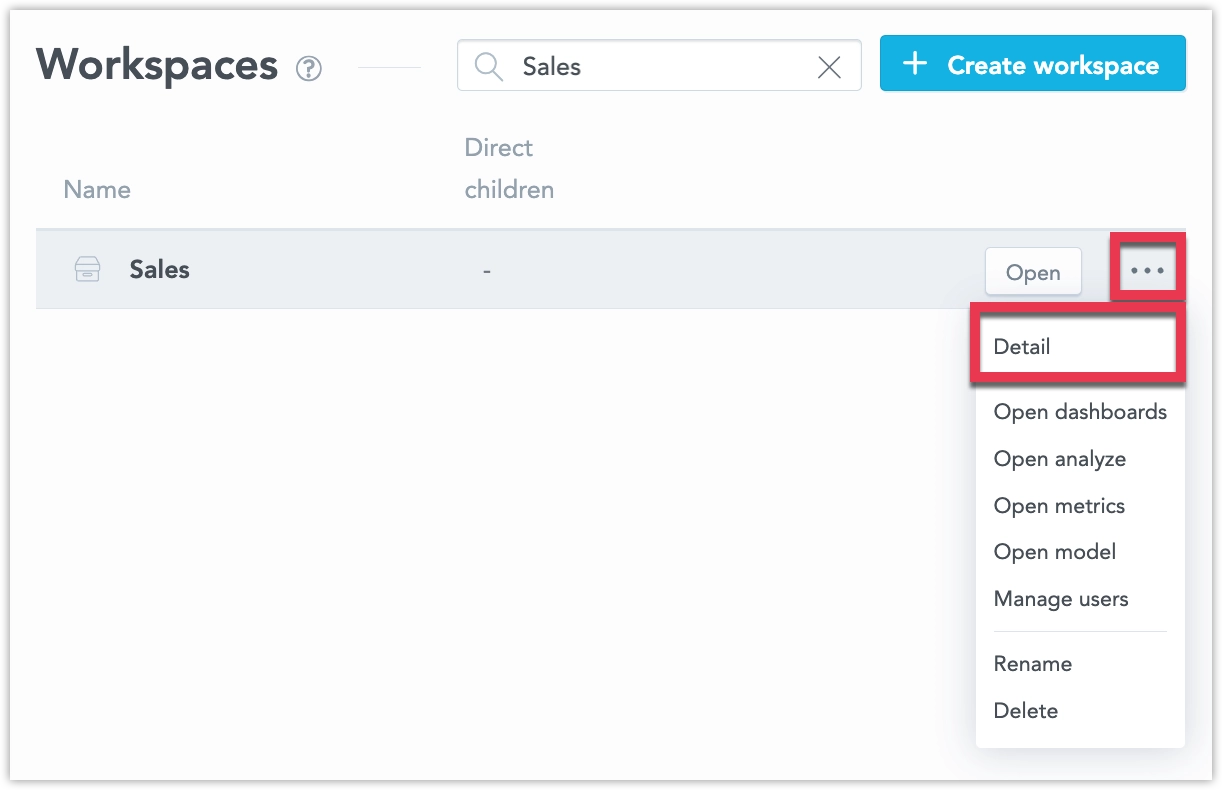
Go to Workspaces.
Hover over a workspace, open the … (ellipsis) menu, and select Detail.
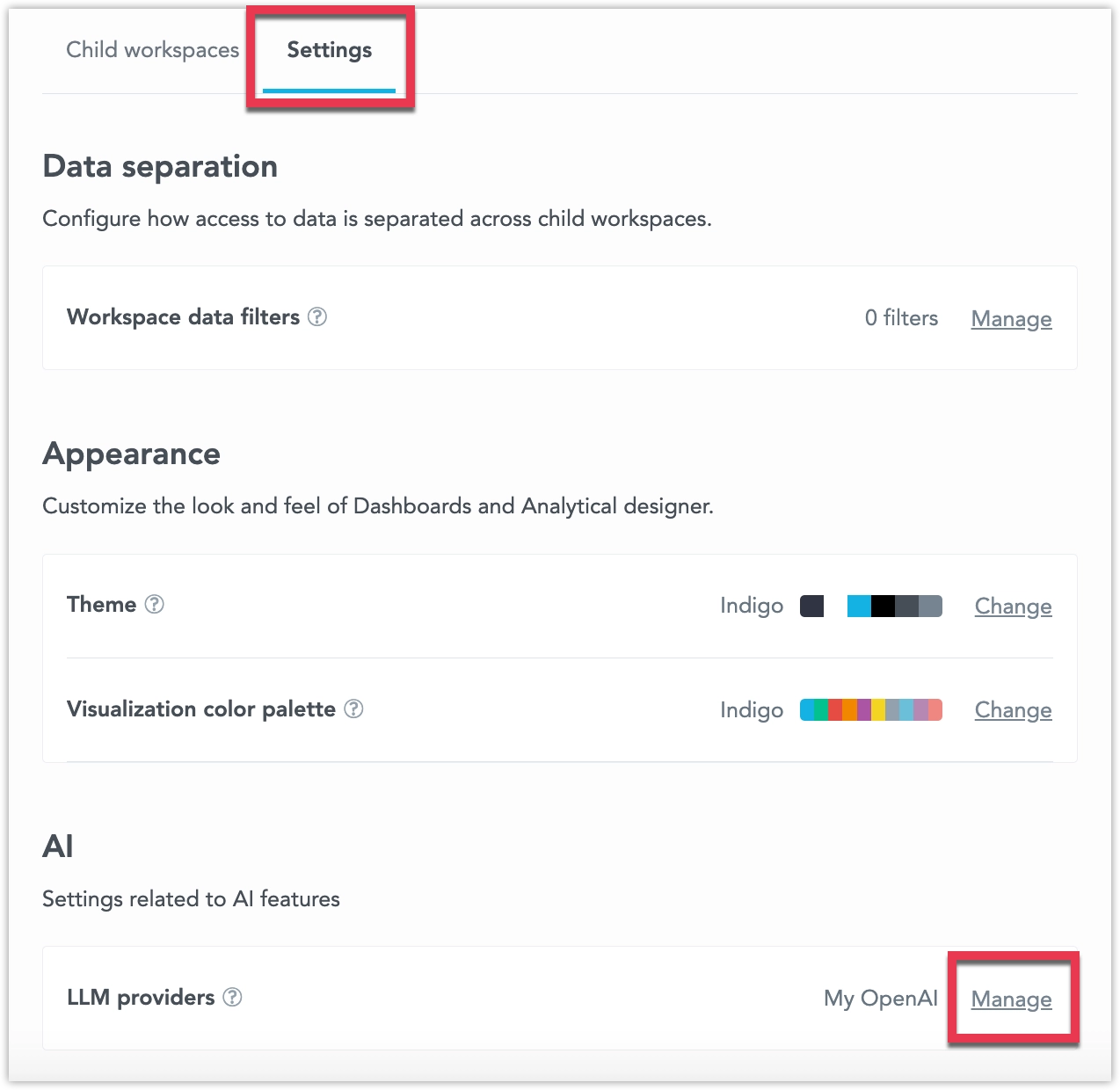
Switch to Settings and under AI > Default LLM model click Manage.
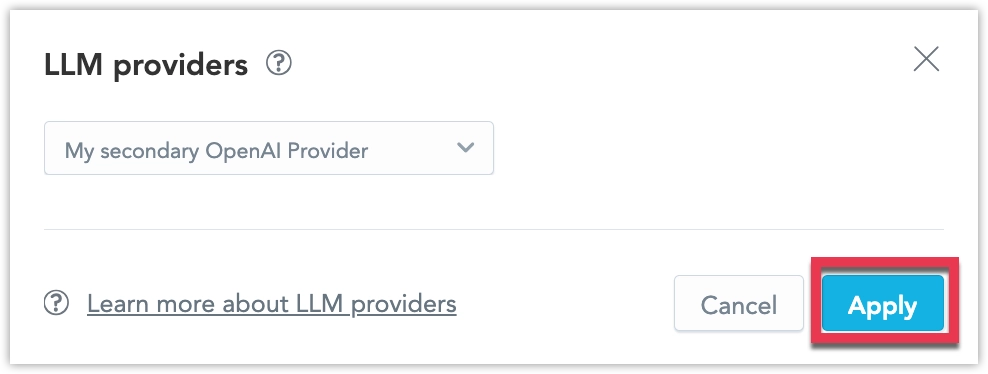
Select the provider and model that the workspace should use, then click Apply.
Update Providers and Model Availability
After you create a provider, you can update its configuration later.
To update connection details, open the provider, switch to Connection settings, edit the values, and save the provider. GoodData validates the updated settings when you save them.
You can also change which models are available for a provider by updating the model selection.
Removing a model from the selected list changes whether that model is available in GoodData for that provider. It does not delete the model from the external provider.
If you remove a model that is used as a workspace override, that workspace falls back to the default model of the same provider.
Delete a Provider
To delete a provider, open the provider list and select the delete action for that provider. If the provider is the current organization default, GoodData requires you to select a new default provider.