Configure AI Assistant
To make the AI Assistant available to users in your organization, as an administrator you must complete the following:
Configure at least one large language model (LLM) provider and select at least one model, see Configure LLM Providers and Models for AI Assistant.
Grant workspace users permission to use the Assistant, see Assign Permissions.
Additionally, you can:
Override the default provider and model in selected workspaces.
Control how many Assistant queries each user can run within a time window for a given workspace, see Manage User Quotas.
Assign Permissions
By default, no users have permission to access the Assistant. To enable access, grant users the Workspace.AI_USE_Assistant permission.
Users with VIEW Permission
Users with Workspace.VIEW cannot save visualizations created by the Assistant, even when they have the Workspace.AI_USE_Assistant permission.
Workspace-level and user-level data filters still apply to users with Workspace.VIEW, but the Assistant can answer questions about any data in the workspace, not only the metrics, visualizations, or dashboards explicitly shared with the user.
Steps:
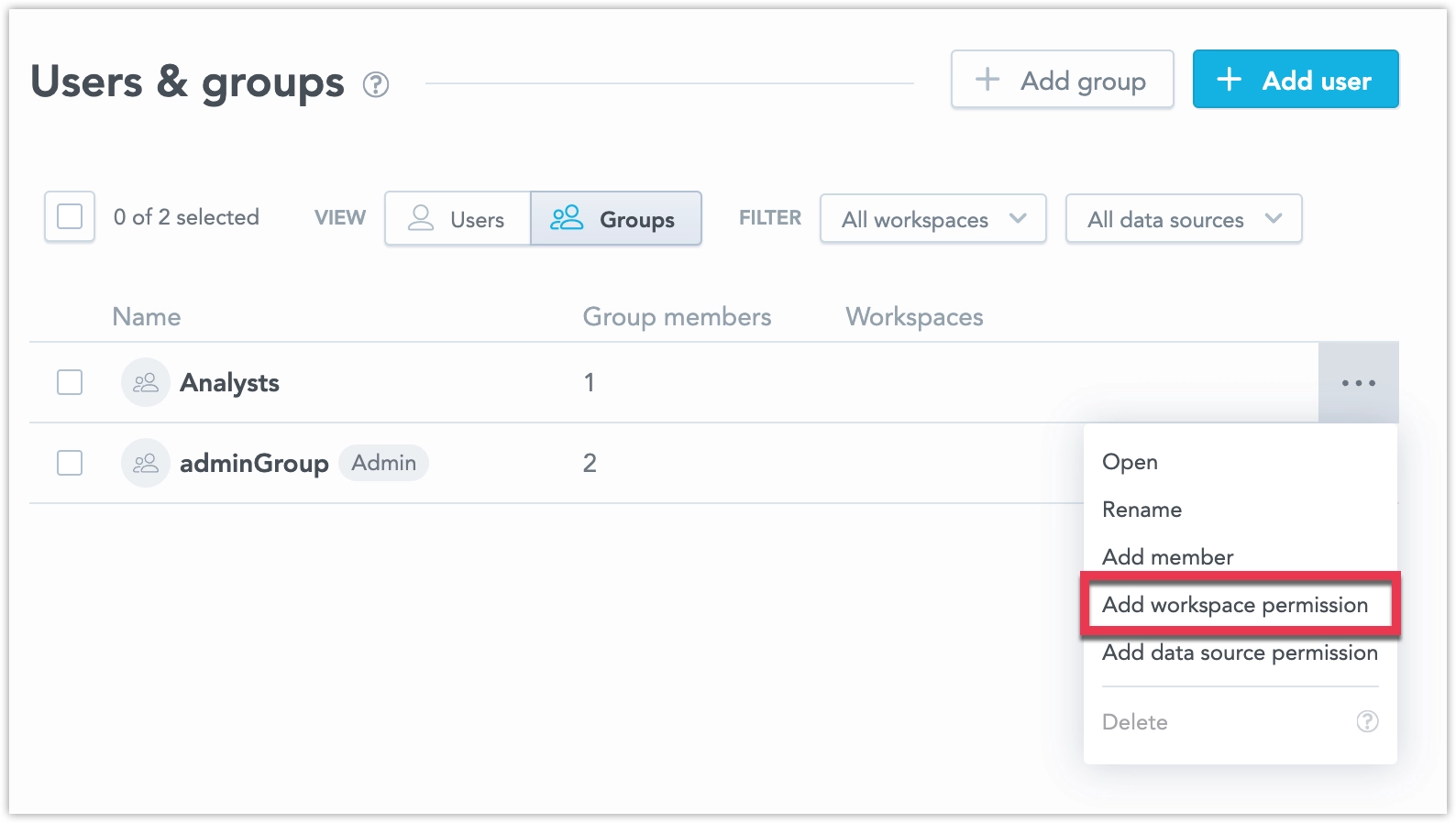
In Users & groups, next to a user or group, click the … (ellipsis) button and select Add workspace permission:
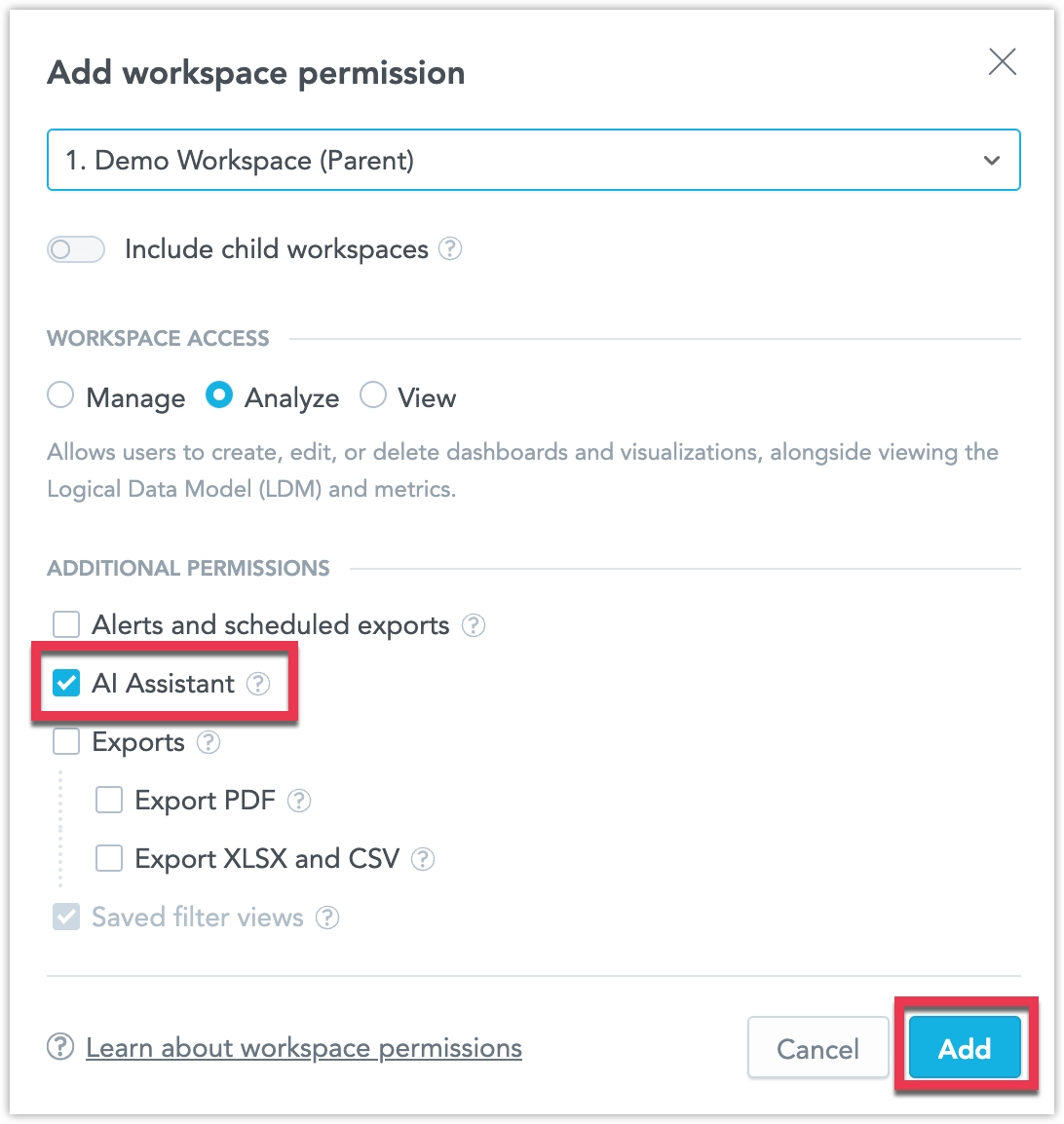
Select a workspace, enable AI Assistant, and click Add:
Manage Existing Providers and Models
After you create a provider, you can update its connection settings, change which models are available, change the default provider, or remove a provider.
Update a Provider
If provider settings change, open the provider and update the connection settings.
When you edit an existing provider, the model selection is shown first. Connection details are available on a separate Connection settings tab.
GoodData validates the updated configuration when you save it. If the credentials or endpoint are invalid, GoodData shows an error and the update is not saved.
Delete a Provider
To remove a provider, open the provider list and select the delete action for that provider. If the provider is currently set as the organization default, you must select a different default provider.
Remove a Model from a Provider
To remove a model from a provider (i.e. disable the model for GoodData), clear the model from the selected list and save the provider.
If you remove a model that is used as a workspace override, that workspace falls back to the default model of the same provider.
If you remove the current default model for a provider, the Default model field is cleared. In that case, you must select a new default model before you can save the provider.
Manage User Quotas
GoodData caps Assistant usage separately per user and per workspace. By default, each user can submit up to 30 interactions during any rolling 24-hour period in a given workspace. Once that cap is reached, the user is limited to one interaction per hour in that workspace until the 24-hour window elapses.
Use the following API call to change the maximum number of interactions or the reset period for a specific workspace:
curl $HOST_URL/api/v1/entities/workspaces/<WORKSPACE_ID>/workspaceSettings \
    -X POST \
    -H "Authorization: Bearer <API_TOKEN>" \
    -H "Content-Type: application/vnd.gooddata.api+json" \
    -d '{
        "data": {
            "attributes": {
                "type": "AI_RATE_LIMIT",
                "content": {
                    "maxInteractions": <NUMBER_OF_INTERACTIONS>,
                    "timeWindowHours": <NUMBER_OF_HOURS>
                }
            },
            "id": "ai_rate_limit1",
            "type": "workspaceSetting"
        }
    }'
Control AI Visibility of Objects
Some analytical objects are created for technical or internal purposes and should not be used by AI when generating visualizations or answering questions. To support this use case, GoodData provides a way to control whether an object is visible to AI.
What the isHidden Property
Does
The isHidden property controls whether an analytical object is available to AI-powered features, such as:
- AI Assistant search results
- object suggestions and autocomplete
- ad hoc visualizations created by AI
When an object is hidden, AI does not use it or suggest it, even though the object still exists in the workspace. The object remains part of the metadata. It is still available in system tools such as the Analytics Catalog. It can also still be used manually in dashboards and visualizations.
Supported Object Types
You can control AI visibility for the following object types:
- metrics
- attributes
- labels
- facts
- visualizations
Default Behavior
The isHidden property is optional.
- If the property is not set, or is set to
false, the object is visible to AI. - If
isHiddenis set totrue, the object is hidden from AI.
This preserves backward compatibility. Existing workspaces behave the same way unless you explicitly change the setting.
Example:
{
  "id": "<OBJECT_ID>",
  "type": "metric",
  "title": "<OBJECT_TITLE>",
  "description": "<OBJECT_DESCRIPTION>",
  "isHidden": true,
  "workspaceId": "<WORKSPACE_ID>"
}
Behavior with Attributes and Labels
If you hide an attribute, its labels are typically also hidden from AI to keep the experience consistent. This helps prevent AI from using technical labels that belong to hidden attributes.