Create a PostgreSQL Server Data Source
Follow these steps to connect to a PostgreSQL Server and create a PostgreSQL data source:
Refer to Additional Information for additional performance tips and information about PostgreSQL Server feature support.
You can also use this data source to connect to TimescaleDB or Aurora PostgreSQL database.
Configure User Access Rights
We recommend creating a dedicated user and user role specifically for integrating with GoodData.
Steps:
Create a user role and grant it the following access rights:
GRANT CONNECT ON DATABASE {database_name} TO ROLE {role_name};
GRANT USAGE ON SCHEMA {schema_name} TO ROLE {role_name};
GRANT SELECT ON ALL TABLES IN SCHEMA {schema_name} TO ROLE {role_name};
Create a user and assign them the user role:
GRANT ROLE {role_name} TO USER {user_name};Make the user role default for the user:
ALTER USER {user_name} SET DEFAULT_ROLE={role_name};
Create a PostgreSQL Data Source
Once you have configured your PostgreSQL user’s access rights, you can proceed to create a PostgreSQL data source that you can then connect to.
Steps:
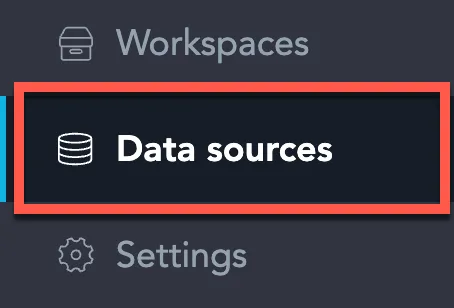
On the home page switch to Data sources.
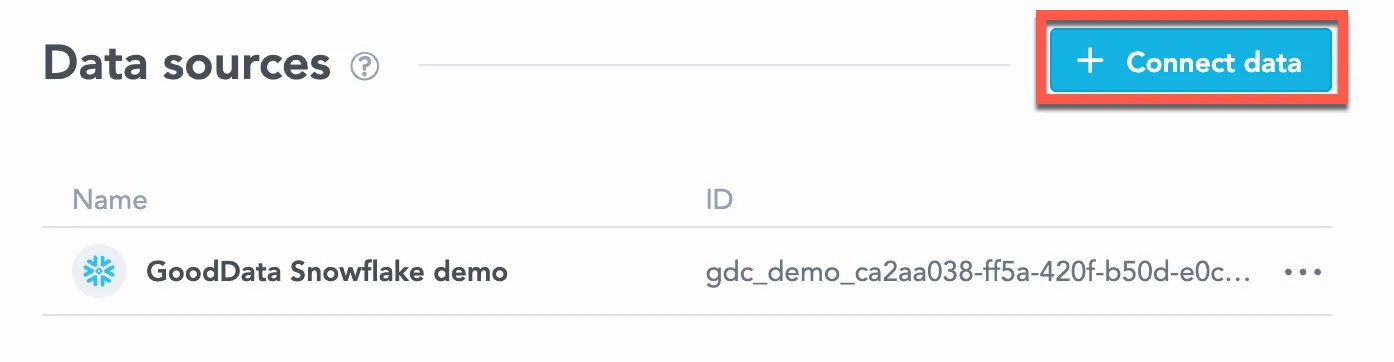
Click Connect data.
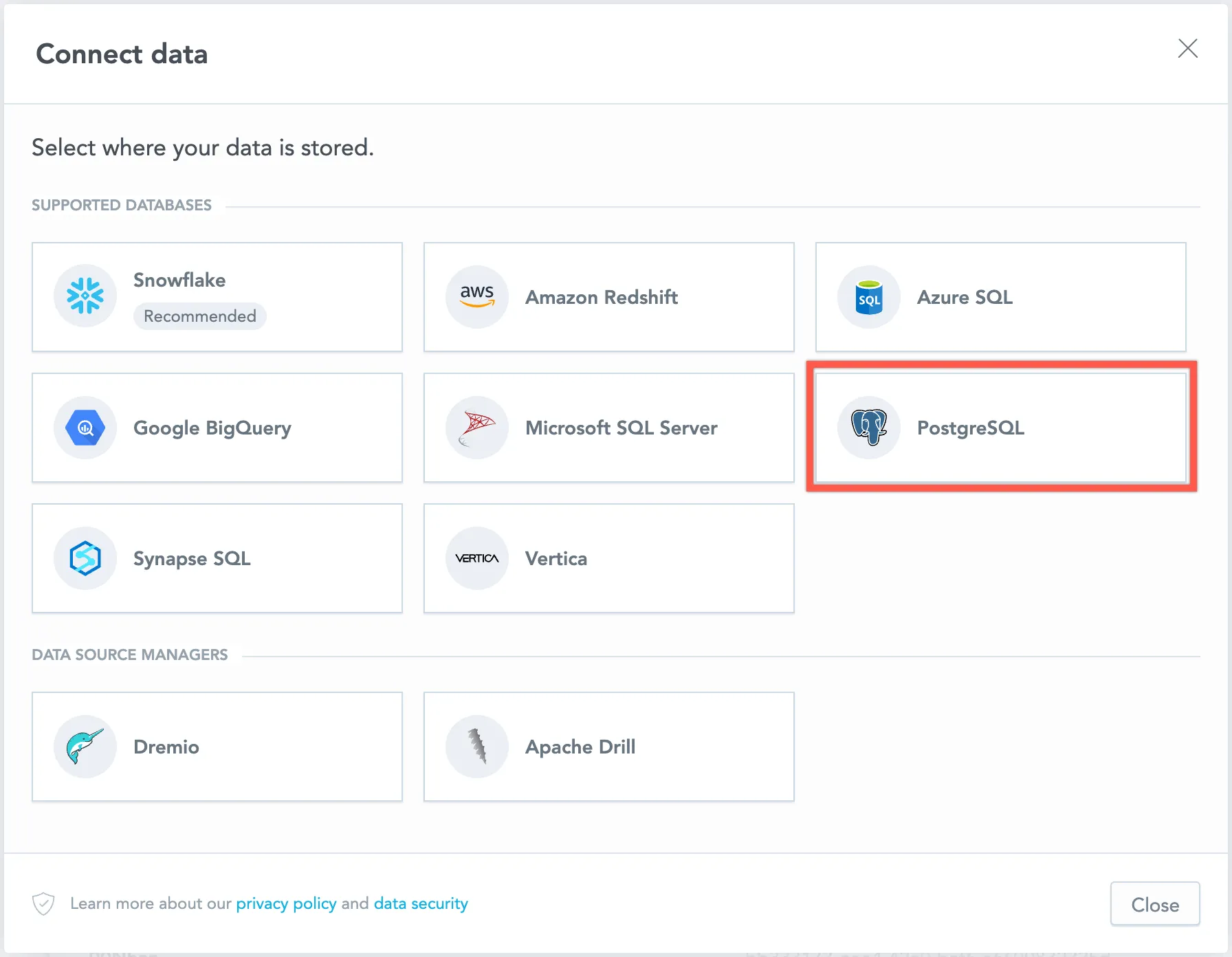
Select PostgreSQL.
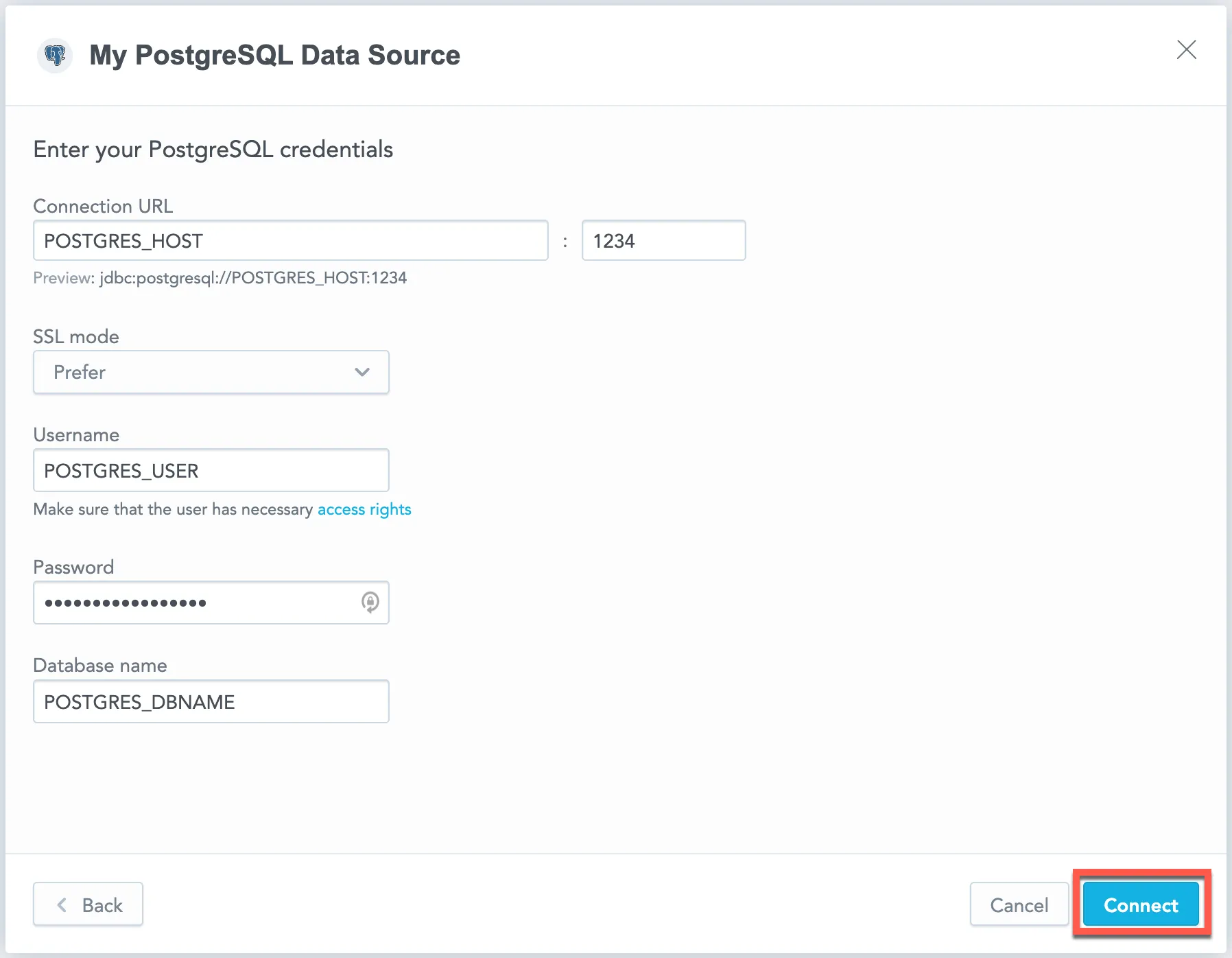
Name your data source and fill in your PostgreSQL credentials and click Connect:
Input your schema name and click Save:
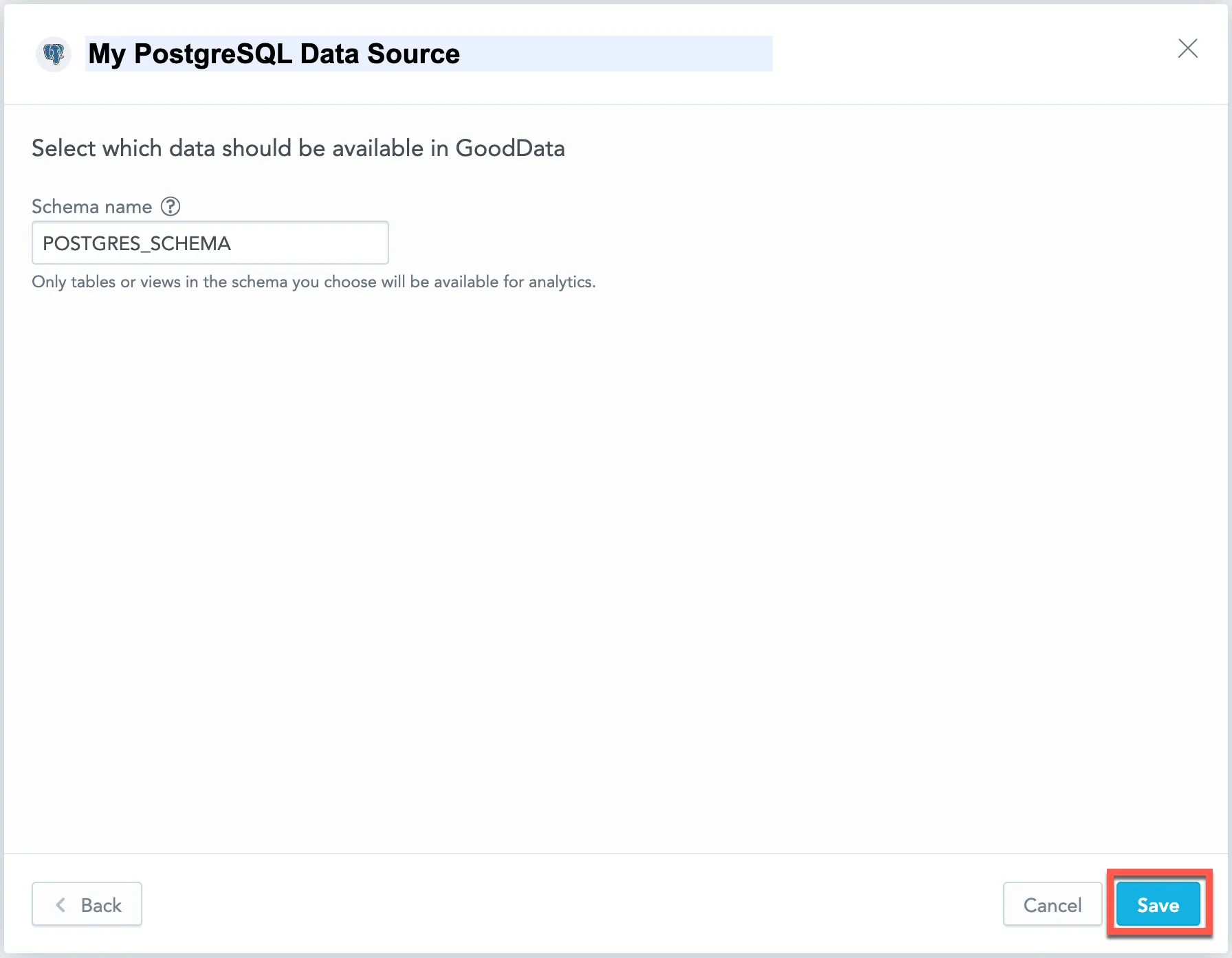
Your data source is created!

Steps:
Create a PostgreSQL data source with the following API call:
curl $HOST_URL/api/v1/entities/dataSources \
  -H "Content-Type: application/vnd.gooddata.api+json" \
  -H "Accept: application/vnd.gooddata.api+json" \
  -H "Authorization: Bearer $API_TOKEN" \
  -X POST \
  -d '{
    "data": {
    "type": "dataSource",
    "id": "<unique_id_for_the_data_source>",
    "attributes": {
      "name": "<data_source_display_name>",
      "url": "jdbc:postgresql://<POSTGRES_HOST>:5432/<POSTGRES_DBNAME>",
      "schema": "<POSTGRES_SCHEMA>",
      "type": "POSTGRESQL",
      "username": "<POSTGRES_USER>",
      "password": "<POSTGRES_PASSWORD>"
    }
    }
  }' | jq .
To confirm that the data source has been created, ensure the server returns the following response:
{
  "data": {
    "type": "dataSource",
    "id": "<unique_id_for_the_data_source>",
    "attributes": {
      "name": "<data_source_display_name>",
      "url": "jdbc:postgresql://<POSTGRES_HOST>:5432/<POSTGRES_DBNAME>",
      "schema": "<POSTGRES_SCHEMA>",
      "type": "POSTGRESQL",
      "username": "<POSTGRES_USER>"
    }
  },
  "links": {
    "self": "$HOST_URL/api/v1/entities/dataSources/<unique_id_for_the_data_source>"
  }
}
Create a PostgreSQL data source with the following API call:
from gooddata_sdk import GoodDataSdk, CatalogDataSource, BasicCredentials

host = "<GOODDATA_URI>"
token = "<API_TOKEN>"
sdk = GoodDataSdk.create(host, token)

sdk.catalog_data_source.create_or_update_data_source(
    CatalogDataSourcePostgres(
        id=data_source_id,
        name=data_source_name,
        db_specific_attributes=PostgresAttributes(
            host=os.environ["POSTGRES_HOST"],
            db_name=os.environ["POSTGRES_DBNAME"]
        ),
        schema=os.environ["POSTGRES_SCHEMA"],
        credentials=BasicCredentials(
            username=os.environ["POSTGRES_USER"],
            password=os.environ["POSTGRES_PASSWORD"],
        ),
    )
)
Additional Information
Query Tagging
GoodData can attach query tags to SQL statements so you can trace database workload back to its origin in GoodData. Tags are added automatically to supported executions when query tagging is enabled.
Query tagging is supported for:
- Visualization queries
- Label elements queries (for example, loading attribute values in filters)
Query tagging is not applied to exports (PDF, XLSX, CSV), alerts, or scheduled exports.
What Gets Tagged
Tags include execution context such as:
- Organization ID
- Workspace ID
- User ID
- Execution type (visualization query vs label elements query)
- When available, identifiers of the triggering dashboard and visualization
This metadata is intended for observability and performance troubleshooting. It does not include raw data values.
Enable Query Tagging
Query tagging is controlled by the ENABLE_QUERY_TAGS setting. You can enable it at the workspace level or at the organization level. The setting value is a boolean (true or false).
Example
Enabling query tagging at the workspace level:
curl -H "Authorization: Bearer ${API_KEY}" \
  -X POST \
  -H "Content-Type: application/vnd.gooddata.api+json" \
  -H "Accept: application/vnd.gooddata.api+json" \
  -d '{
    "data": {
      "type": "workspaceSetting",
      "id": "enable_query_tags",
      "attributes": {
        "content": { "value": true },
        "type": "ENABLE_QUERY_TAGS"
      }
    }
  }' \
  "https://${HOSTNAME}/api/v1/entities/workspaces/${WORKSPACE_ID}/workspaceSettings"
PostgreSQL Notes
PostgreSQL does not provide a native query tagging mechanism. GoodData appends the tags as a SQL comment to the executed statement. You can then correlate queries in logs and tools such as pg_stat_statements.
Data Source Details
The JDBC URL must be in the following format:
jdbc:postgresql://<host>:<port>/<databaseName>Basic authentication is supported. Specify
userandpassword.GoodData uses up-to-date drivers.
The following database versions are supported:
- 9.x
- 10.x
- 11.x
- 12.x
- 13.x
- 14.x
Performance Tips
If your database holds a large amount of data, consider the following practices:
Index the columns that are most frequently used for JOIN and aggregation operations. Those columns may be mapped to attributes, labels, primary and foreign keys.
Define partitioning to improve performance of visualizations that use only the recent data.
This feature strongly relies on the version of your PostgreSQL Version database, so check the official user documentation for your version.
Query Timeout
The default timeout value for queries is 160 seconds. If a query takes longer than 160 seconds, it is stopped. The user then receives a status code 400 and the message Query timeout occurred.
Query timeout is closely related to the ACK timeout. For proper system configuration, the ACK timeout should be longer than the query timeout. The default ACK timeout value is 170 seconds.
Permitted parameters
- adaptiveFetch
- adaptiveFetchMaximum
- adaptiveFetchMinimum
- allowEncodingChanges
- ApplicationName
- assumeMinServerVersion
- autosave
- binaryTransferDisable
- binaryTransferEnable
- cleanupSavepoints
- connectTimeout
- currentSchema
- defaultRowFetchSize
- disableColumnSanitiser
- escapeSyntaxCallMode
- gssEncMode
- hostRecheckSeconds
- loadBalanceHosts
- loginTimeout
- logUnclosedConnections
- options
- preferQueryMode
- preparedStatementCacheQueries
- preparedStatementCacheSizeMiB
- readOnly
- reWriteBatchedInserts
- socketFactory
- socketTimeout
- ssl
- sslmode
- sslpassword
- sslpasswordcallback
- targetServerType
- tcpKeepAlive